Depicting Substructure Search Match
A program that performs a substructure search initialized with the given SMARTS pattern and highlights the identified matches on the depicted molecule.
Command Line Interface
A description of the command line interface can be obtained by executing the program with the –help argument.
prompt> python match2img.py --help
will generate the following output:
Simple parameter list
 highlight options :
   -highlightcolor : Highlighting color
   -highlightstyle : Highlighting style

 image options :
   -height : Height of output image
   -width : Width of output image

 input/output options :
   -in : Input filename
   -out : Output filename
   -smarts : SMARTS pattern

 molecule display options :
   -aromstyle : Aromatic ring display style
   -atomcolor : Atom coloring style
   -atomlabelfontscale : Atom label font scale
   -atomprop : Atom property display
   -atomstereostyle : Atom stereo display style
   -bondcolor : Bond coloring style
   -bondprop : Bond property display
   -bondstereostyle : Bond stereo display style
   -hydrstyle : Hydrogen display style
   -linewidth : Default bond line width
   -protgroupdisp : Protective group display style
   -scale : Scaling of the depicted molecule
   -superdisp : Super atom display style
   -titleloc : Location of the molecule title

 prepare depiction options :
   -clearcoords : Clear and regenerate 2D coordinates of molecule(s)
   -orientation : Set the preferred orientation of 2D coordinates
   -suppressH : Suppress explicit hydrogens of molecule(s)
Code
Download code
#!/usr/bin/env python
# (C) 2022 Cadence Design Systems, Inc. (Cadence)
# All rights reserved.
# TERMS FOR USE OF SAMPLE CODE The software below ("Sample Code") is
# provided to current licensees or subscribers of Cadence products or
# SaaS offerings (each a "Customer").
# Customer is hereby permitted to use, copy, and modify the Sample Code,
# subject to these terms. Cadence claims no rights to Customer's
# modifications. Modification of Sample Code is at Customer's sole and
# exclusive risk. Sample Code may require Customer to have a then
# current license or subscription to the applicable Cadence offering.
# THE SAMPLE CODE IS PROVIDED "AS IS", WITHOUT WARRANTY OF ANY KIND,
# EXPRESS OR IMPLIED.  OPENEYE DISCLAIMS ALL WARRANTIES, INCLUDING, BUT
# NOT LIMITED TO, WARRANTIES OF MERCHANTABILITY, FITNESS FOR A
# PARTICULAR PURPOSE AND NONINFRINGEMENT. In no event shall Cadence be
# liable for any damages or liability in connection with the Sample Code
# or its use.

#############################################################################
# Depict a molecule and highlight the substructure specified by
# the given SMARTS pattern
#############################################################################

import sys
from openeye import oechem
from openeye import oedepict


def main(argv=[__name__]):

    itf = oechem.OEInterface(InterfaceData)
    oedepict.OEConfigureImageOptions(itf)
    oedepict.OEConfigurePrepareDepictionOptions(itf)
    oedepict.OEConfigure2DMolDisplayOptions(itf)
    oedepict.OEConfigureHighlightParams(itf)

    if not oechem.OEParseCommandLine(itf, argv):
        oechem.OEThrow.Fatal("Unable to interpret command line!")

    iname = itf.GetString("-in")
    oname = itf.GetString("-out")

    ext = oechem.OEGetFileExtension(oname)
    if not oedepict.OEIsRegisteredImageFile(ext):
        oechem.OEThrow.Fatal("Unknown image type!")

    ifs = oechem.oemolistream()
    if not ifs.open(iname):
        oechem.OEThrow.Fatal("Cannot open input file!")

    ofs = oechem.oeofstream()
    if not ofs.open(oname):
        oechem.OEThrow.Fatal("Cannot open output file!")

    mol = oechem.OEGraphMol()
    if not oechem.OEReadMolecule(ifs, mol):
        oechem.OEThrow.Fatal("Cannot read input file!")

    smarts = itf.GetString("-smarts")

    ss = oechem.OESubSearch()
    if not ss.Init(smarts):
        oechem.OEThrow.Fatal("Cannot parse smarts: %s" % smarts)

    popts = oedepict.OEPrepareDepictionOptions()
    oedepict.OESetupPrepareDepictionOptions(popts, itf)
    oedepict.OEPrepareDepiction(mol, popts)

    width, height = oedepict.OEGetImageWidth(itf), oedepict.OEGetImageHeight(itf)
    dopts = oedepict.OE2DMolDisplayOptions(width, height, oedepict.OEScale_AutoScale)
    oedepict.OESetup2DMolDisplayOptions(dopts, itf)
    dopts.SetMargins(10.0)

    disp = oedepict.OE2DMolDisplay(mol, dopts)

    hstyle = oedepict.OEGetHighlightStyle(itf)
    hcolor = oedepict.OEGetHighlightColor(itf)

    oechem.OEPrepareSearch(mol, ss)

    unique = True
    for match in ss.Match(mol, unique):
        oedepict.OEAddHighlighting(disp, hcolor, hstyle, match)

    oedepict.OERenderMolecule(ofs, ext, disp)

    return 0


#############################################################################
# INTERFACE
#############################################################################

InterfaceData = '''
!BRIEF [-in] <input> [-smarts] <smarts> [-out] <output image>

!CATEGORY "input/output options :"

    !PARAMETER -in
      !ALIAS -i
      !TYPE string
      !REQUIRED true
      !KEYLESS 1
      !VISIBILITY simple
      !BRIEF Input filename
    !END

    !PARAMETER -smarts
      !TYPE string
      !REQUIRED true
      !KEYLESS 2
      !VISIBILITY simple
      !BRIEF SMARTS pattern
    !END

    !PARAMETER -out
      !ALIAS -o
      !TYPE string
      !REQUIRED true
      !KEYLESS 3
      !VISIBILITY simple
      !BRIEF Output filename
    !END

!END
'''

if __name__ == "__main__":
    sys.exit(main(sys.argv))
See also
OEConfigureImageOptionsfunctionOEConfigurePrepareDepictionOptionsfunctionOEConfigure2DMolDisplayOptionsfunctionOEConfigureHighlightParamsfunctionOESetup2DMolDisplayOptionsfunctionOESubSearch class
OESetupPrepareDepictionOptionsfunctionOEPrepareDepictionfunctionOEGetImageWidthandOEGetImageHeightfunctionsOE2DMolDisplayOptions class
OESetup2DMolDisplayOptionsfunctionOE2DMolDisplay class
OEGetHighlightStyleandOEGetHighlightColorfunctionsOEPrepareSearchfunctionOEAddHighlightingfunctionOERenderMoleculefunction
Examples
prompt> python match2img.py -in indole.ism -out image.png -smarts "c1ccccc1"
will generate the image shown in Figure: Example of using the program with default highlighting
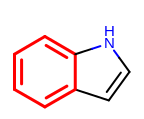
Example of using the program with default highlighting
prompt> python match2img.py -in indole.ism -out image.png -smarts "c1ccccc1" -highlightcolor green
will generate the image shown in Figure: Example of using the program with green highlighting
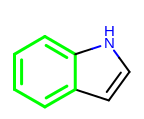
Example of using the program with green highlighting
prompt> python match2img.py -in indole.ism -out image.png -smarts "c1ccccc1" -highlightstyle BallAndStick
will generate the image shown in Figure: Example of using the program with ball and stick
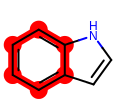
Example of using the program with ball and stick highlighting
See also
Highlighting chapter