BROOD Floe Tutorial
The BROOD - 3D Fragment Replacement Floe uses BROOD to generate new and diverse compounds that satisfy isosteric and chemical feature constraints while incorporating synthetic feasibility. Starting from a hit or lead molecule, BROOD generates bioisosteric analogs by replacing user-specified portions of the lead with fragments that have similar shape and electrostatics, but with potentially novel connectivity and chemistry. Fragments and scaffold couplings are drawn from a known chemical space defined by the supplied Brood Fragments Database.
This tutorial explains how to set up and run the floe: choosing a fragment database, defining the query with the Query Sketcher to control the floe’s core behavior, tuning the BROOD settings, and interpreting the Floe Report.
Floe Used in the Tutorial
Input Parameters
At a minimum, the BROOD - 3D Fragment Replacement Floe requires a Brood Fragments Database collection and a query.
The default fragment
database collection, named brood-database-chembl-xxx (where xxx is a version number), is available in the
Organization Data folder. You can also build a custom collection using the
CHOMP - Generate BROOD Fragment Database Floe.
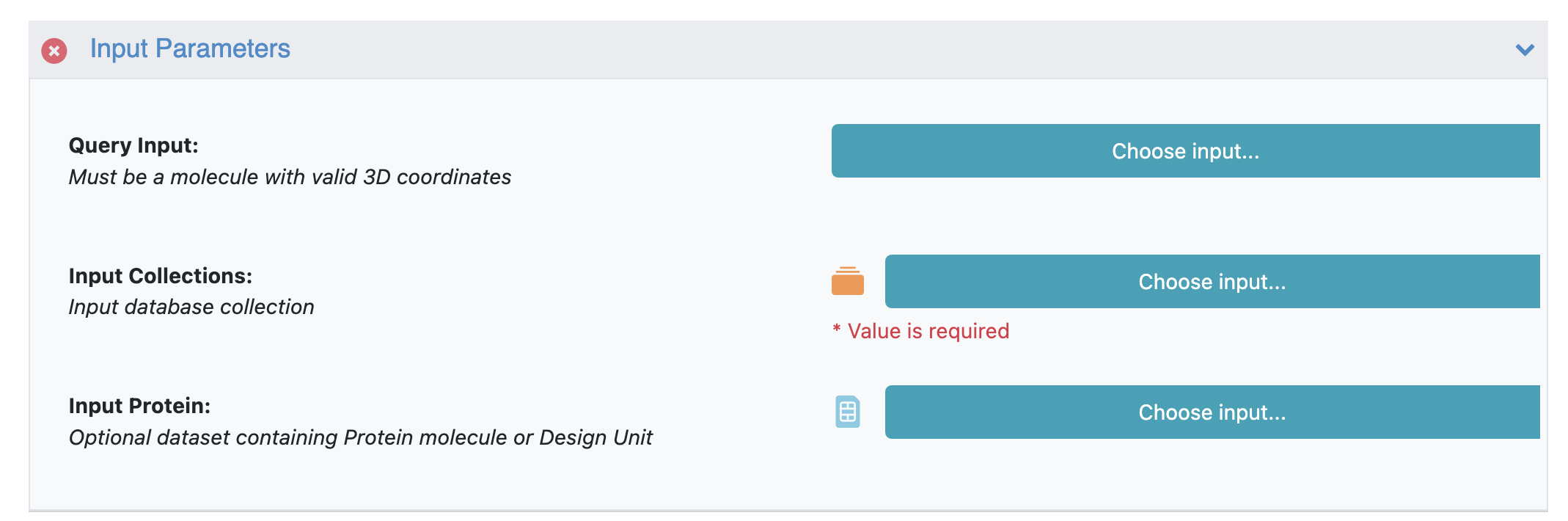
Figure 1. Input parameters for the BROOD - 3D Fragment Replacement Floe.
The remaining inputs are:
Query Sketcher: This is an interactive sketcher used to select the atoms that define the query. The chosen Selection type is shown on the input tile once the query is prepared (see below).
Brood Query (Query Reader): An optional dataset of one or more previously prepared BROOD queries can be used instead of the sketcher.
Design Unit: Optionally, a design unit can provide a receptor for the clash check. Hits that clash with the receptor are eliminated.
Components to keep as the ‘protein’: When a design unit is supplied, these components (
protein,nucleic,cofactors,other_ligands,other_cofactors) define what is treated as the receptor for the clash check.
Note
While both Query Sketcher and Brood Query are optional, at least one must be supplied.
A query is required: the floe will fail if none is provided.
Defining the Query with the Query Sketcher
The query defines the portion(s) of the molecule that BROOD acts on, and it is the single-most important choice in setting up a run. Click the Choose input button for the Query Sketcher to open the Sketcher, then use Select an existing molecule to load a lead molecule and the lasso tool to select atoms.
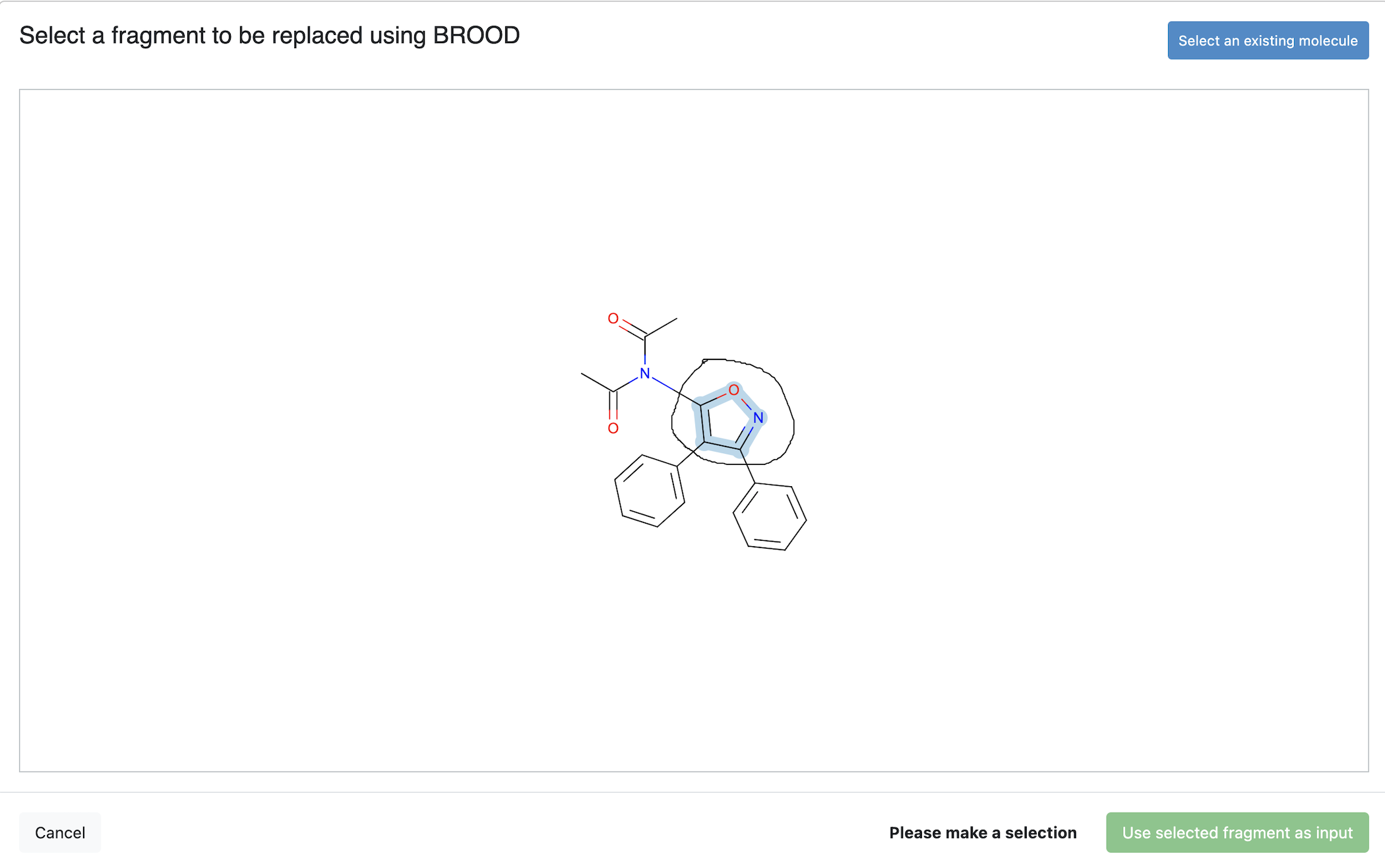
Figure 2. BROOD query sketcher selection types.
The ‘Selection type’ drop-down in the top-right of the sketcher offers three options:
Select atoms to keep (automatic query generation)
Select the atoms you want to preserve. BROOD automatically builds the query from the remaining atoms and runs the floe. Up to 100 atoms can be selected across one or more disconnected segments (hold the Ctrl/Command key while selecting to add segments), and an empty selection is valid. This option is supported only for the ROCS and ET score types.
Select atoms to replace (classic Brood query)
Select the atoms you want BROOD to replace; the query is built directly from that selection. Up to 50 atoms can be selected in a single segment, and an empty selection is not valid. To search with more than one query, add a separate Query Sketcher instance (using Add more) for each query and select one segment in each — every sketcher contributes one query, and all queries must come from the same parent molecule. This option is supported for all three score types (ROCS, ET, and LinkOnly).
Select atoms for linking/cyclization
Select two separate segments that BROOD should join through a linking or cyclization process. This option is supported for all three score types (ROCS, ET, and LinkOnly).
In the example in Figure 3, the Select atoms to keep option is used: the highlighted atoms form the scaffold that is preserved, and the unselected regions go through the query-creation process. When your selection is complete, click the “Use molecule as input” button.
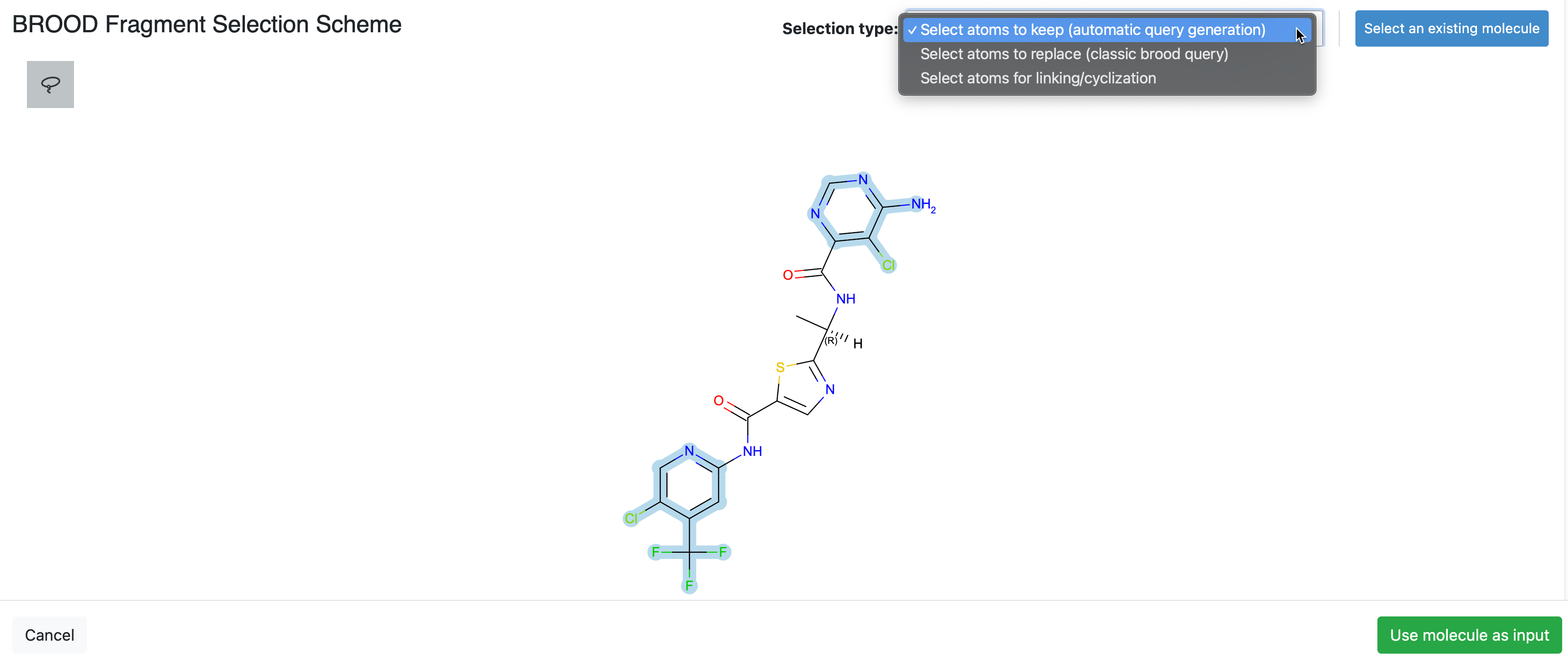
Figure 3. The BROOD Query Sketcher showing a multiquery atom selection.
Using Prepared Queries
Instead of sketching, you can supply one or more previously prepared queries using the Brood Query (Query Reader) parameter. Prepared queries must be generated from the same parent molecule. Supplying them allows you to rerun BROOD on a chosen set of queries of interest, rather than resketching them each time.
BROOD Settings
The Brood Settings parameter group controls how analogs are generated and scored.
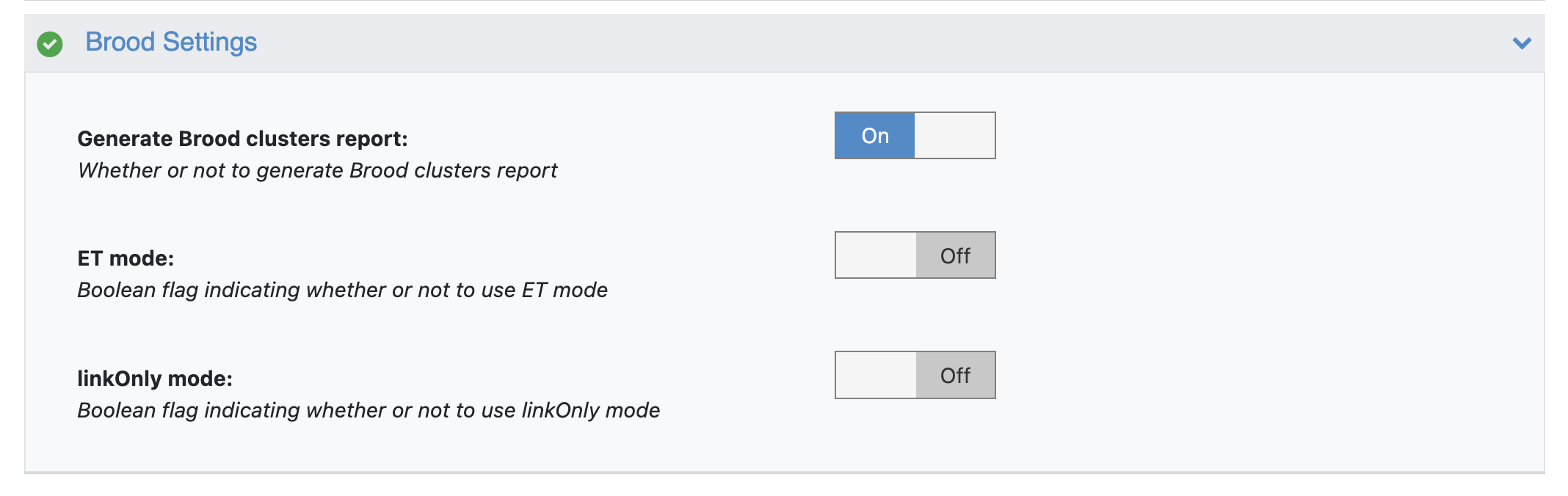
Figure 4. The BROOD Settings parameters on the Job Form.
Maximum Hits: This is the maximum number of hits to return.
Build Secondary: When On, BROOD replaces multiple query regions within the same molecule simultaneously, producing combined, multi-fragment analogs (in addition to the primary hits that replace one query region at a time). When Off, each query region is replaced independently, producing single-fragment analogs.
Score type (Brood Analyzer): This parameter specifies the scoring mode used for the overlay:
rocs,et, orlinkOnly. The allowed value depends on the Selection type chosen in the Sketcher.Shape Cutoff: This is the minimum acceptable shape Tanimoto for a hit.
Ring Requirement (Brood Overlay): This is the ring requirement between attachment points in a fragment (
-2: ring of any size;-1: exclude rings;0: ring agnostic;1–12: ring of the specified size).Maximum Local Strain: This is the maximum local strain allowed in analogs.
Delta Strain: When On, strain is calculated relative to the query molecule.
Output Options
The Output Parameters group allows you to specify your outputs.
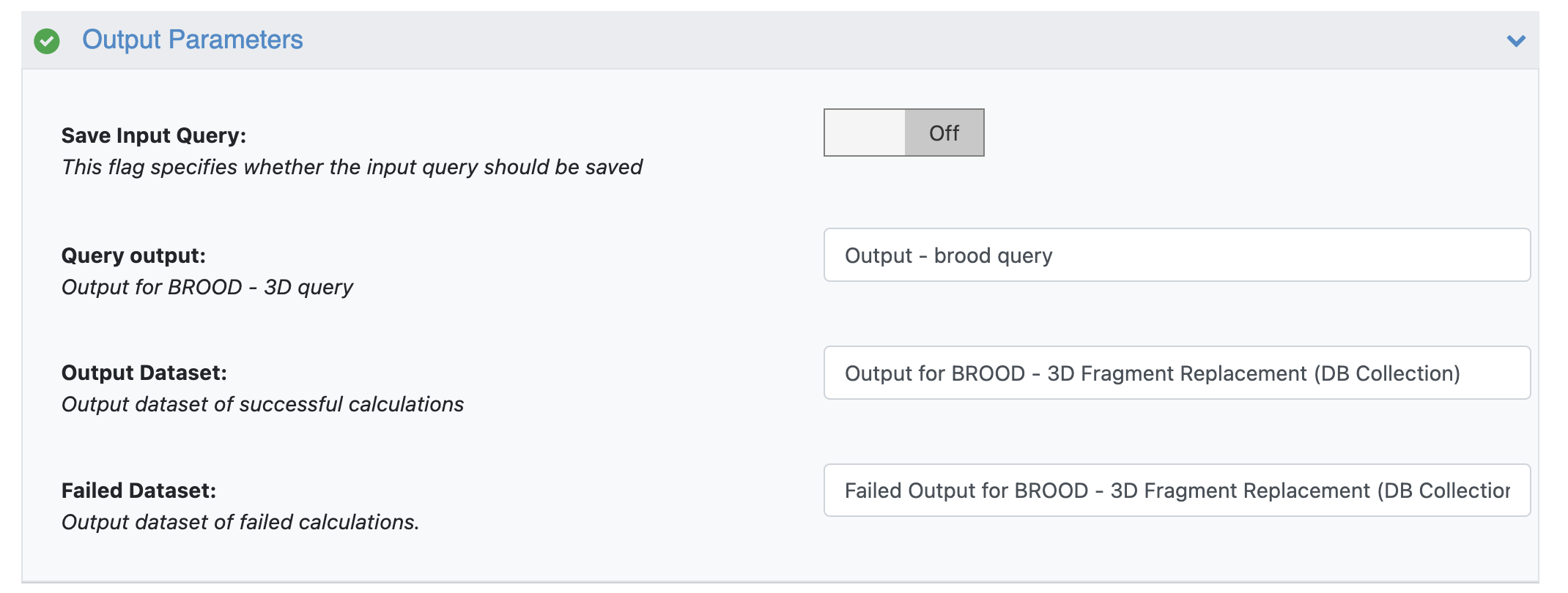
Figure 5. Output parameters for the BROOD - 3D Fragment Replacement Floe.
Save Query: When On, the query built in the Sketcher is saved so it can be reused in future runs (as a prepared Brood Query).
Query Output (Query Writer): This is the dataset name for the saved BROOD query.
Output Dataset (Success output writer): This is the dataset of successful calculations (the hit list).
Failed Dataset (Failed output writer): This is the dataset of failed calculations.
Interpretation of Results
The BROOD output hit list is written to a dataset that can be viewed on the 3D & Analyze page. After each run, the Floe Report summarizes the run across several pages.
The top image in Figure 6 shows the queries that were searched (here, the three query regions highlighted on the parent molecule) and a hit analysis that breaks down the hits by the number of query regions replaced and by query combination.
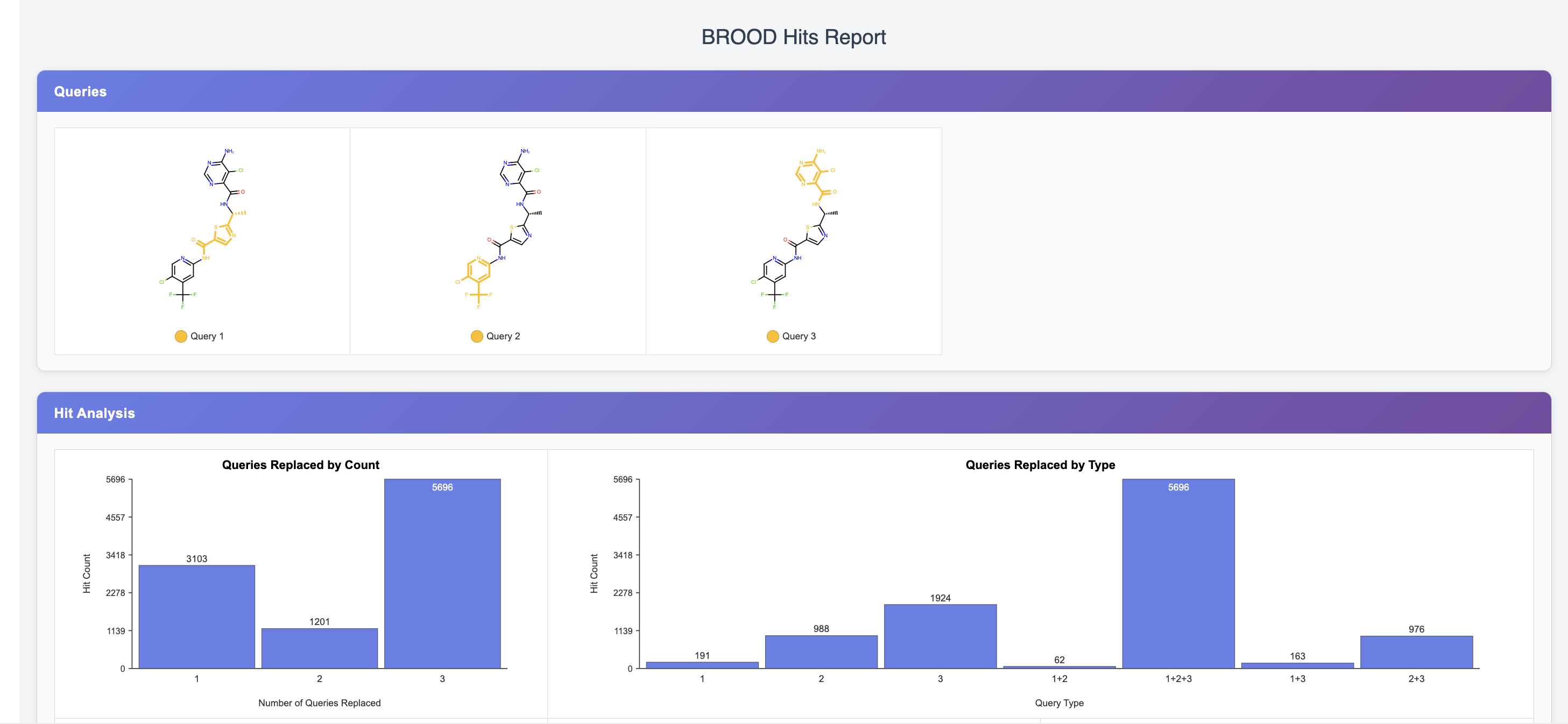
Figure 6. The BROOD Floe Report showing queries and hit analysis.
Figure 7 plots the hit scores (Tanimoto combo scores) against compound index, broken down by query combination and by the number of queries replaced, along with score-distribution histograms. These help gauge how score quality varies with the amount of the molecule that was replaced.
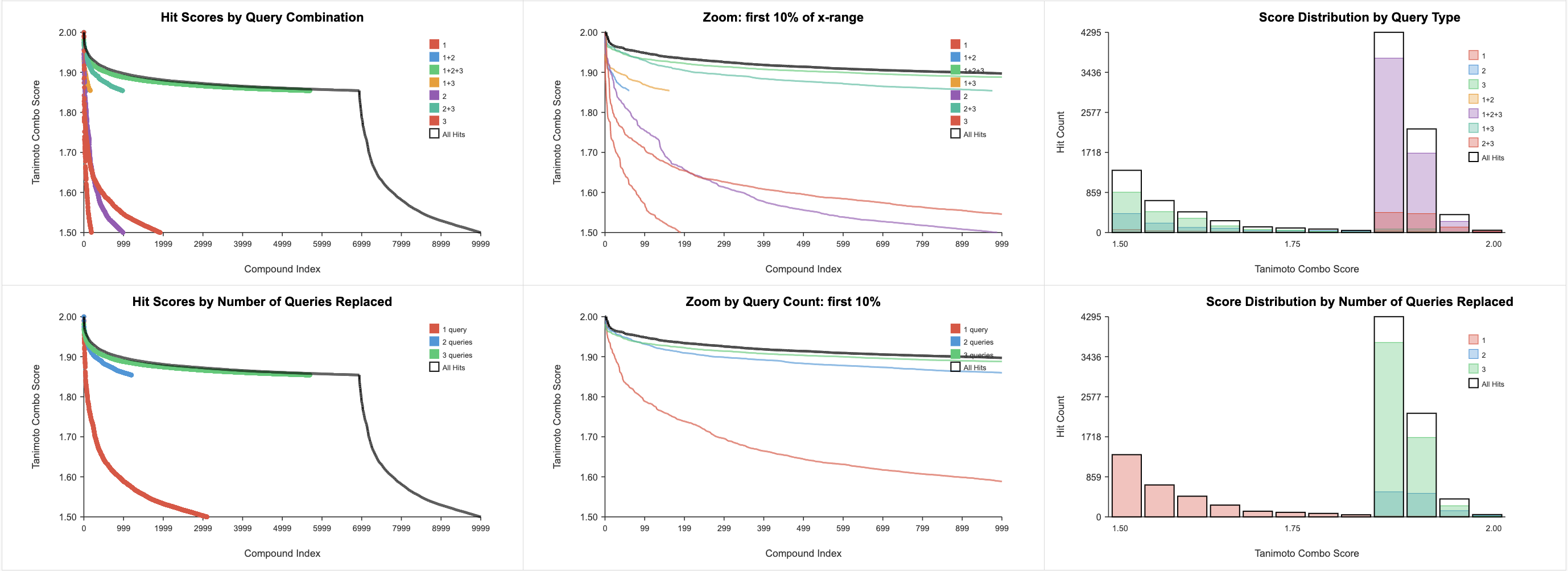
Figure 7. The BROOD Floe Report showing the hit score analysis.
Figure 8 summarizes the clustering of the hits. The output hits are clustered according to a reduced graph hierarchy. The summary reports the number of hits, clusters, and singletons; shows the cluster size distribution; and displays the top-ranked clusters, each represented by its best-scoring member.
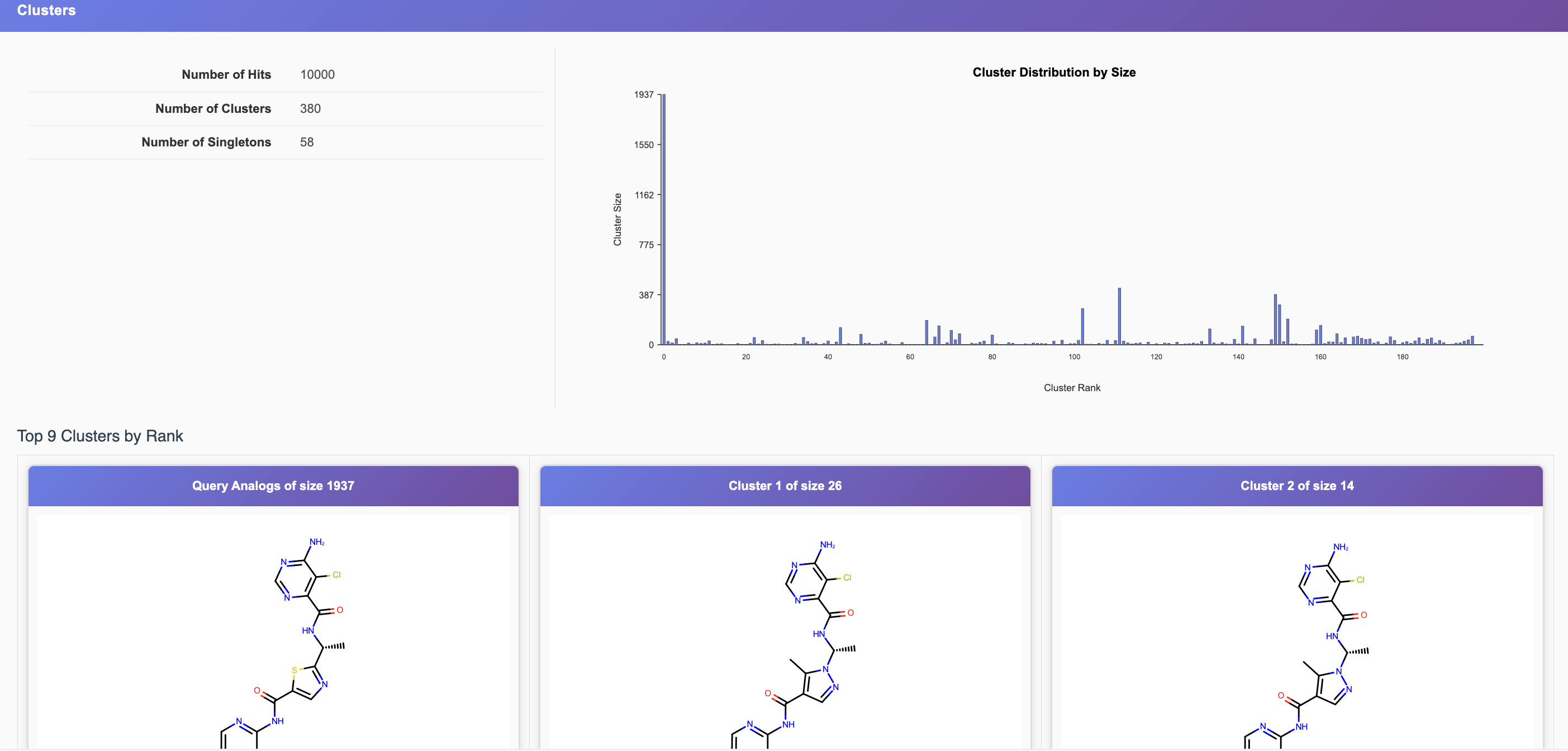
Figure 8. The BROOD Floe Report showing the cluster analysis.