Rapid FE-NES
Free Energy Nonequilibrium Switching (FE-NES) provides a faster, more scalable approach for predicting small-molecule binding affinities using Relative Binding Free Energy (RBFE) computations. By replacing slow equilibrium simulations with rapid, parallel transitions, FE-NES delivers accurate free energy predictions at speeds described in our article. This enables project teams to explore broader design spaces and generate promising hypotheses earlier in lead optimization. Because each alchemical switch is independent, FE-NES is capable of fault-tolerant elastic scaling on cloud resources, making it an ideal fit for the architecture of Orion. Additional details about FE-NES are available in the literature ([Hummer-2001]; [Hummer-2002]; [Gapsys-2020]) and in the general FE-NES tutorial.
Rapid FE-NES builds on these strengths by amplifying both speed and scale without substantially compromising accuracy. These benefits are achieved not by making the alchemical switches faster, but by running fewer of them. As a result, Rapid FE-NES delivers even higher throughput and faster turnaround, so that you can schedule synthesis sooner, run more lead optimization cycles, and maintain project momentum. Specifically, Rapid FE-NES can double prediction throughput or triple analog coverage, with a typical increase in prediction error of only 0.2 kcal/mol.
How to Run Rapid FE-NES on Orion
This tutorial demonstrates how to run Rapid FE-NES with the FE-NES for Binding Affinity Prediction Floe.
Quick Reference
Use the Rapid FE-NES toggle switch in the FE-NES for Binding Affinity Prediction Floe.

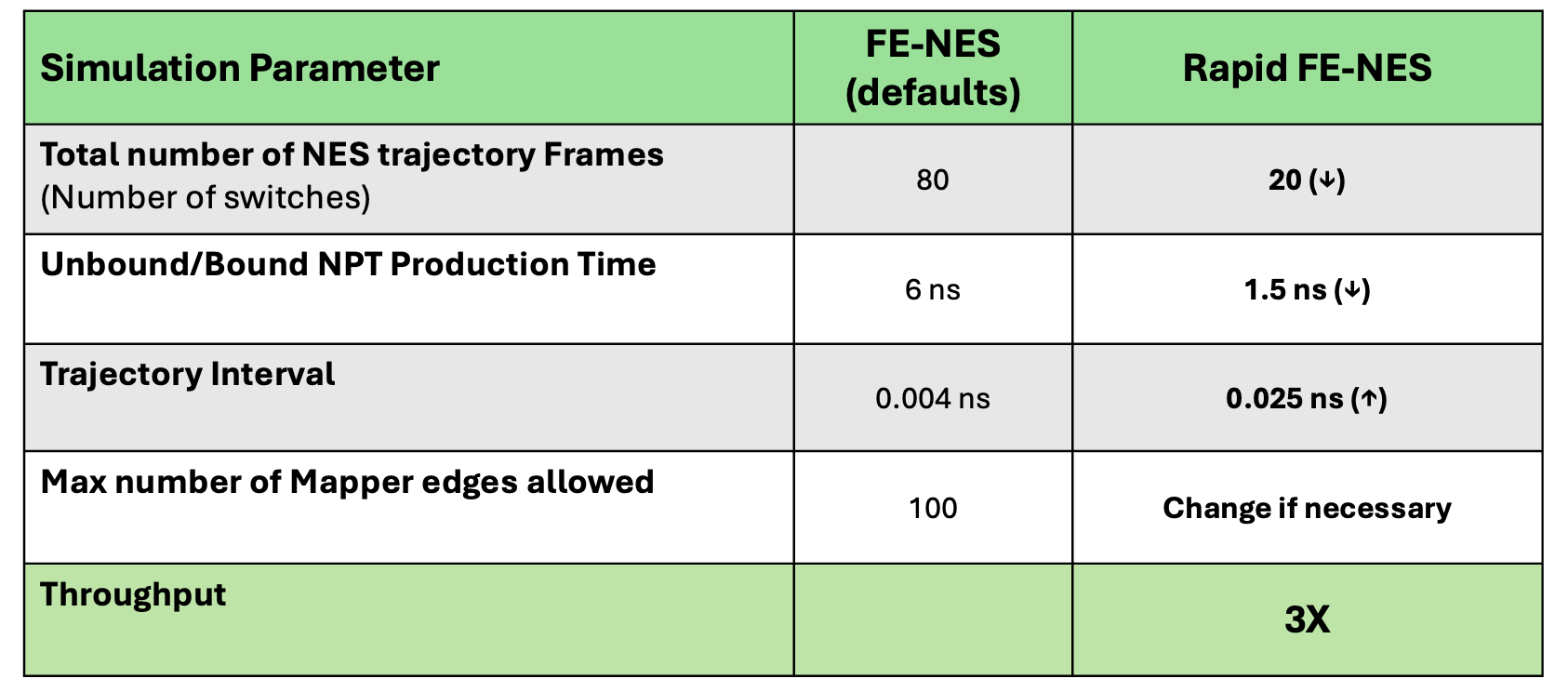
When set to On (default: Off), this will override the MD sampling time and number of NES switches with Rapid FE-NES values (1.5 ns per ligand and 20 switches per edge, as outlined in the table below). These parameter settings can increase throughput by 3 times compared to FE-NES run with default settings.
Floe Inputs
The FE-NES for Binding Affinity Prediction Floe requires two minimal inputs, along with one optional input:
- One receptor
- A dataset containing the Target Protein.Only one target protein (i.e., 1 record) per dataset is allowed. The target protein may consist of multiple chains. The receptor should be prepared with the SPRUCE - Protein Preparation Floe, as described in the Spruce tutorial.
- Posed Ligands
- A single dataset containing at least two ligand records.Ligands must be preposed in the receptor’s binding site. Ligands must be small molecules. Because this floe computes relative binding free energies using a chimeric common core, all ligands must belong to the same congeneric series and share a conserved binding mode.
- (Optional) Experimental binding affinities
- Known experimental affinity values for the ligands.After the ligand dataset is loaded, a column containing experimental affinities can be selected from the dataset. Alternatively, a text file listing the experimental affinities can be provided (see Experimental Affinity Provided by a Text File).
You can complete this tutorial using your own input files. For convenience, we also provide representative inputs below. When viewing links to other tutorials, you may right-click and open the link in a new tab to avoid leaving this page.
Input |
File |
Relevant Tutorials |
|---|---|---|
TYK2 (PDB ID: 4GIH)
|
||
Poses from [Wang-2015]
|
||
Experimental
Affinities
(Optional)
|
Determined from data in [Wang-2015]
|
Locate and Launch the Floe
On the Orion interface, click the “Floe” button on the blue navigation bar to reach the Floe page.
Click on the Workfloes tab.
Under the Floe Filters in the left-hand pane, click on the ‘Packages’ drop-down to expand the list of packages, then select the OpenEye MD Affinity Floes package.
A list of the MD Affinity floes will now be visible in the center panel. Select the FE-NES for Binding Affinity Prediction Floe.
Alternatively, in the center panel, begin typing “FE-NES” in the search bar until you see that floe appear. Then click the “Launch Floe” button to bring up the Job Form.
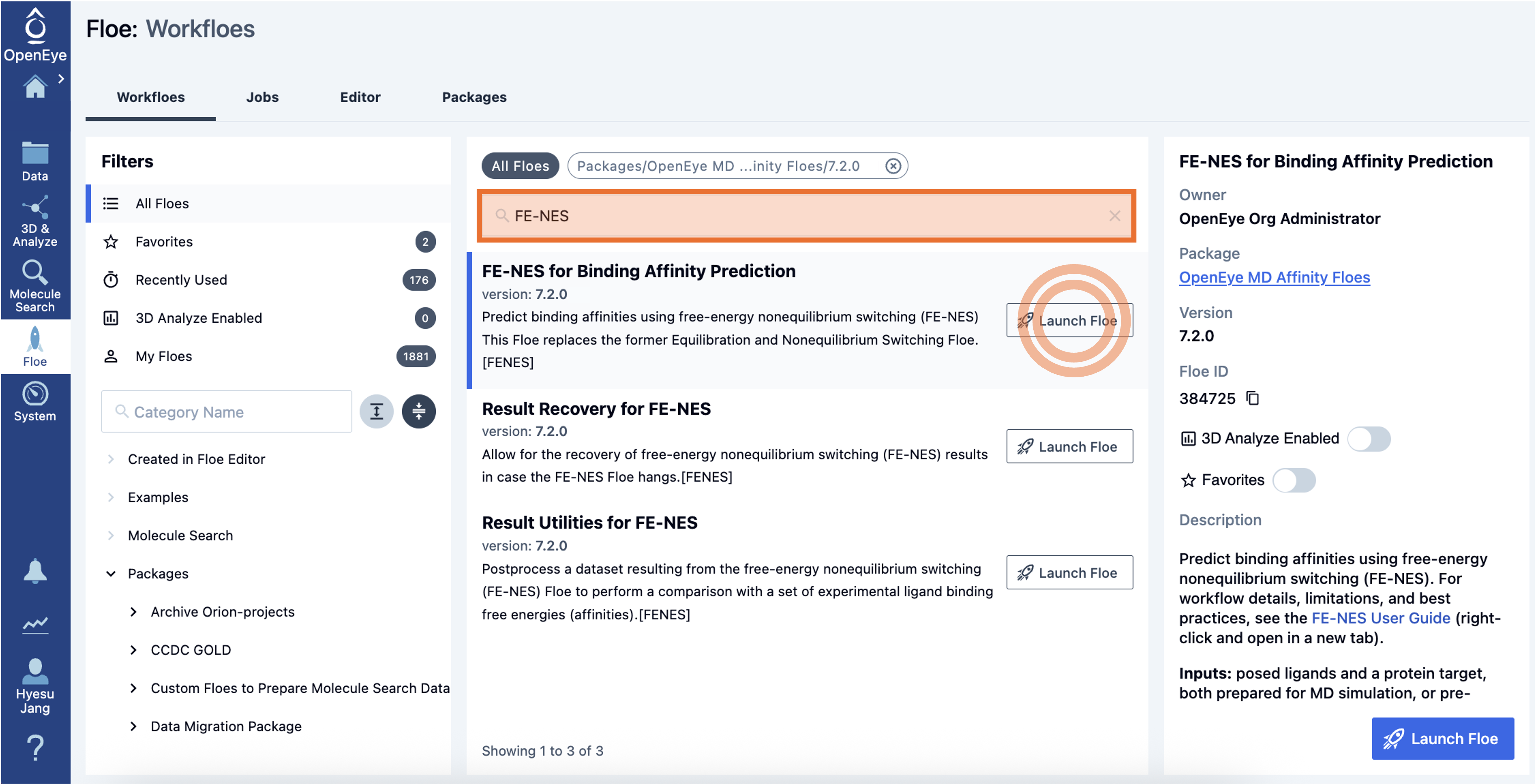
Figure 1. Finding the FE-NES for Binding Affinity Prediction Floe on Orion.
Define Floe Inputs and Submit the Job
Provide the following inputs in the Job Form.
Use the receptor dataset as input for the Target Protein.
Use the ligands dataset as input for Posed Ligands.
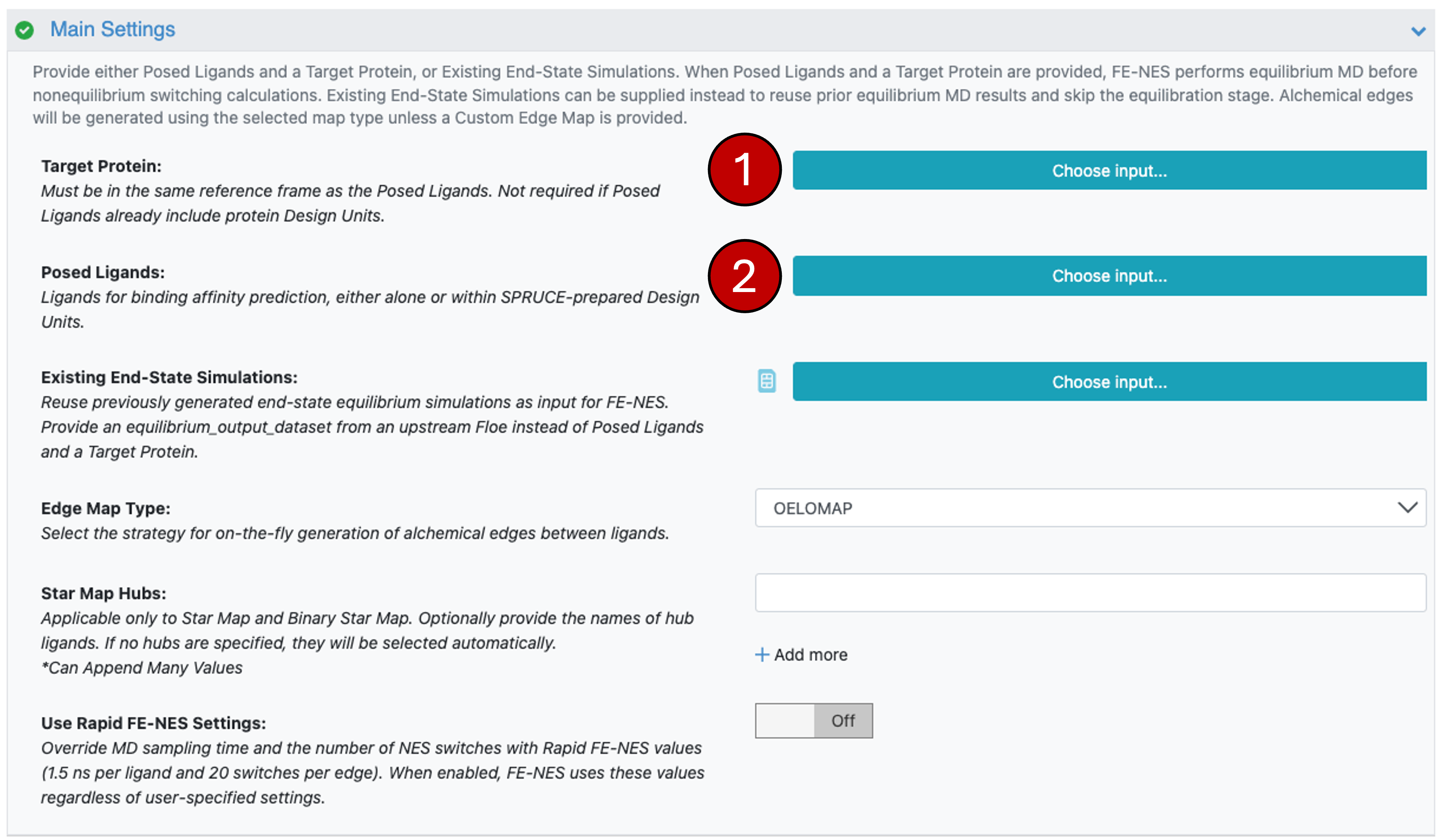
Figure 2. Inputs for the FE-NES for Binding Affinity Prediction Floe.
3. Optional, but recommended for all retrospective studies: To provide experimental affinities, select the column in the Posed Ligands Dataset that contains the experimental affinity values and select the appropriate units for these values from the drop-down list against the parameters in the Experimental Affinities From Posed Ligands. Alternatively, provide a file with experimental affinity values for the ligands (in the Experimental Affinities from a Text File). See Experimental Affinity Provided by a Text File for the required file format. However, both should not be provided simultaneously.
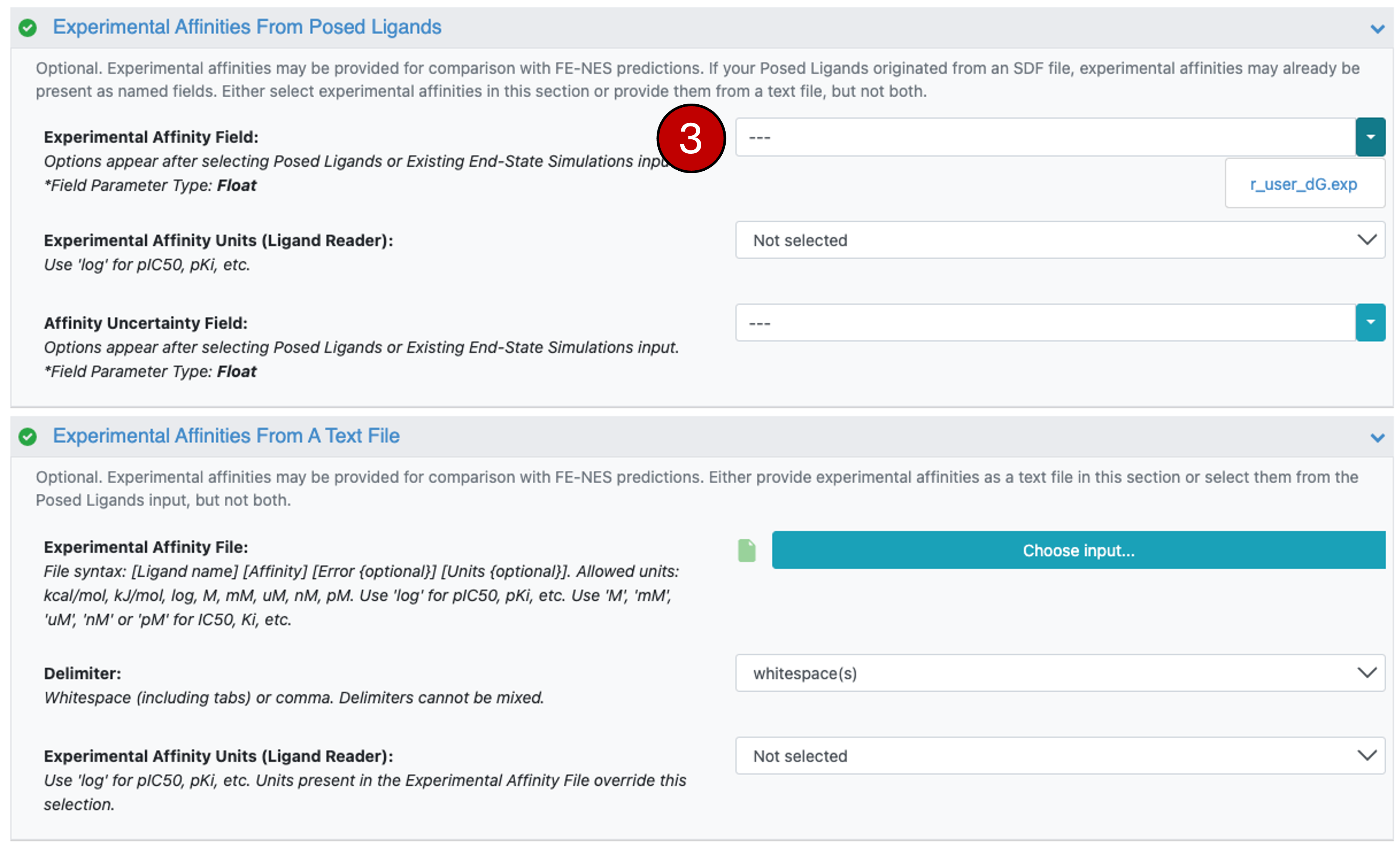
Figure 3. Input for the Ligand Affinity Experimental affinity values.
In the Main Setting group, change the Use Rapid FE-NES Settings toggle switch to On. This sets simulation production times of the bound and unbound states to 1.5 ns (this four-fold reduction from default settings helps the end-state simulations to finish faster) and changes the Total Number of NES Trajectory Frames to 20 (this four-fold reduction from default settings helps the alchemical switches finish faster).
Rapid FE-NES parameters
To run Rapid FE-NES, you must set the ‘Use Rapid FE-NES Settings’ toggle switch to On. Otherwise, the floe will launch using default FE-NES settings.

Warning
We recommend limiting all FE-NES jobs to a maximum of 1000 edges. For much larger sets of ligands, you may need to adjust the Max. Number of Alchemical Edges (defaults to 1000) in the Job Guardrails group. The default prevents unintended submission of high-cost jobs.
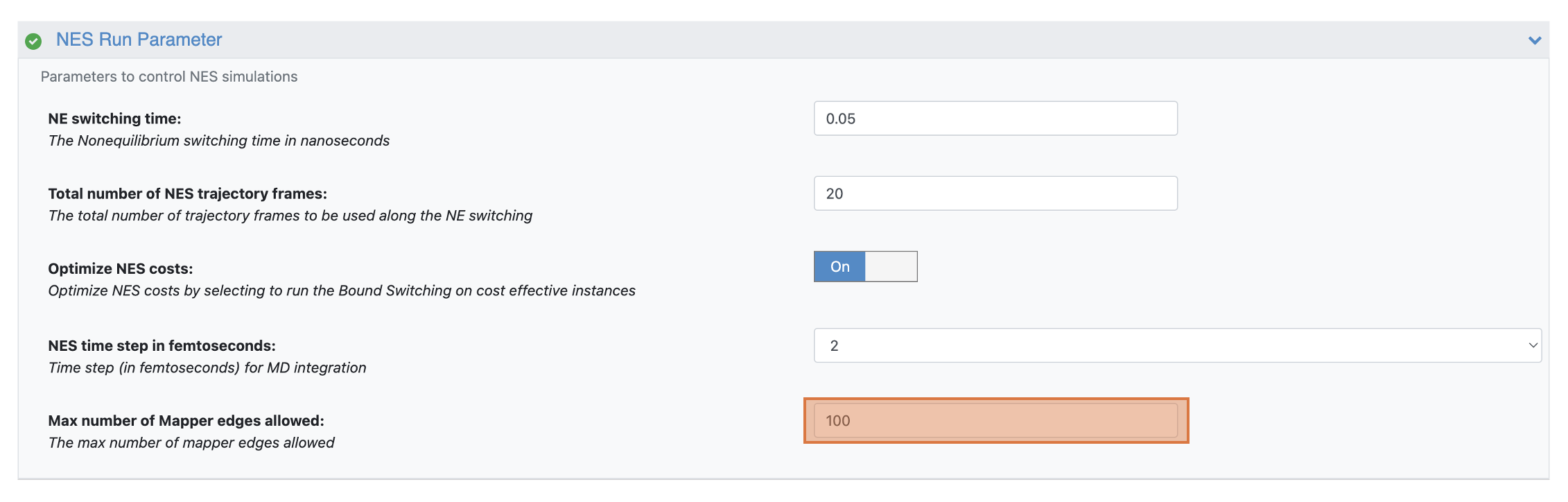
Figure 4. The Max. Number of Alchemical Edges parameter prevents the unintended submission of high-cost jobs.
Click “Start Job” to begin the floe.
Success
Your job has been successfully submitted! Estimated completion time: 2-4 hours.
This estimate is based on the inputs provided in the tutorial (16 ligands connected by 22 edges). Completion times vary with system size and number of alchemical edges. Time to solution increases sublinearly with ligand and edge count, and 500-edge Rapid FE-NES jobs often complete within 6 hours.
Monitoring Progress
You can track job progress in real time by monitoring the floe map. On the Floe page, go to the Jobs Tab, then click on your job. For more information, see the Floe Visualization section in the Floe page documentation of the Orion User Guide. Complete features of the Jobs tab can also be found in the Orion User Guide.
Analyzing Outputs
The FE-NES for Binding Affinity Prediction Floe produces several useful outputs. For more information on their interpretation, see the Outputs from FE-NES section of FE-NES tutorial.
Getting Help with Rapid FE-NES
For questions or assistance, please contact OpenEye Customer Support at support@eyesopen.com.