Tutorial - Search a ROCS X 3D Library
This tutorial covers how to search a ROCS X library with the Multi-Stage ROCS X Search Floe. The multistage floes work by launching one “head” job that orchestrates the running of successive “stage” floes. As each stage floe processes work and completes, it automatically passes its results to downstream stages for further processing. Results from the stage floes can be used like normal resources on Orion outside of the multistage floes context. Stage floes are typically run using more defaults and fewer adjustable parameters. Although these defaults work well in most cases, users who require additional control can run the stage floes individually. More information on the individual floes can be found in the How-To Guides and in the floe documentation.
All inputs for the tutorials can be found in Organization Data / OpenEye Data / Tutorial Data / ROCS X Floes.
Search a ROCS X 3D Library
Now that you have prepared a 3D library, you can search the library with the Multi-Stage ROCS X Search Floe. This runs the following floes in sequence:
Launch the Head Floe
Navigate to the Multi-Stage ROCS X Search Floe on the Floe page. Click “Launch Floe” to bring up the Job Form.
Modify the Name and Output path to your liking. Note the Unique Orchestration Job Tag (MS:ROCSX_Srch by default) under Orchestration Settings. This tag is applied to this job and all launched jobs for easy identification. This tag will be truncated to 64 characters.
Under Stage 1: Model Init, enter these values into these parameters:
Query Molecule to Search: Use a valid search query (e.g., a single-conformer molecule) from a dataset. For the tutorial, use the sample query Tutorial Query Mol: TNKS2–4l33–pdb-ligand.
Input ROCS X 3D Library to Search: Use the library generated from the Prepare a ROCS X 3D Library section of the tutorial (e.g., ROCS X 3D Search Library Collection-ROCS X Quick Start).
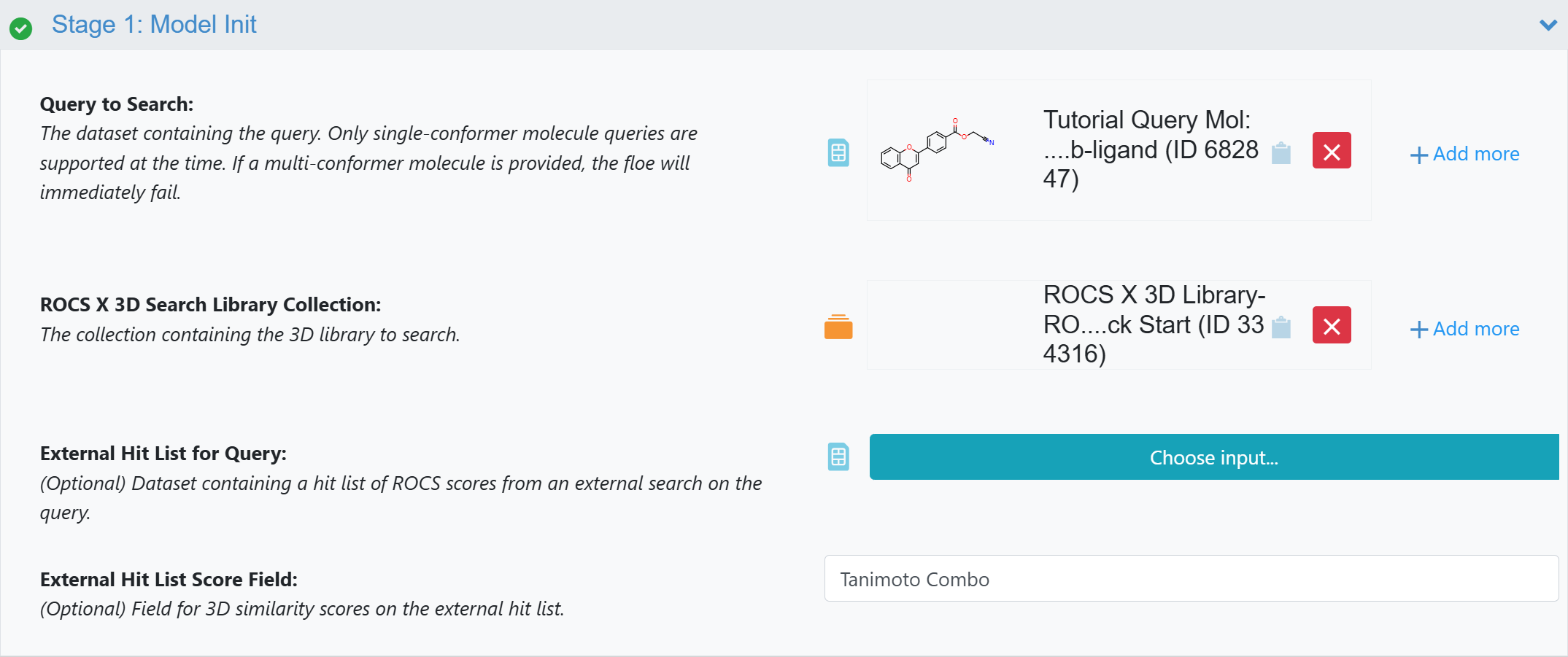
Figure 1. Stage 1: Model Init parameters.
Under Stage 2: ROCS X Search:
Number of Trials: For the purposes of the tutorial, adjust this down from the default 1,500,000 to 500,000 to run a short search.
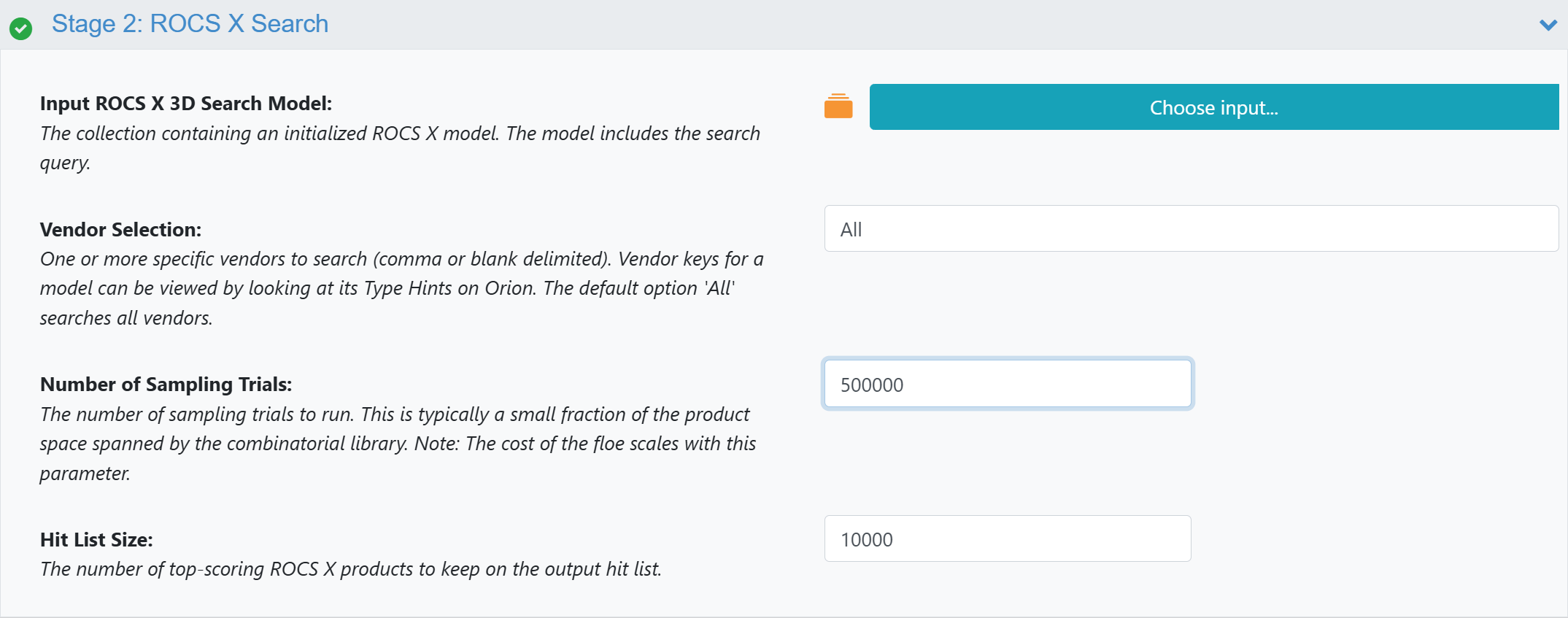
Figure 2. Stage 2 parameters.
Tip
The cost of running the ROCS X - Run 3D Search Floe is approximately proportional to the Number of Sampling Trials (i.e., running 3,000,000 trials costs roughly twice as much as running 1,500,000 trials) but you might find higher scoring hits from running more trials.
Leave the parameters for Stage 3: Hit List Triage as they are.
Label the outputs to your liking and click “Start Job” to begin the floe.
Evaluate the Results
Note
The tutorial jobs should take ~5 hours to complete and cost approximately $15.
You can monitor running jobs and access reports and results from the Jobs tab, just as in the Prepare a ROCS X 3D Library section of the tutorial. When your jobs have finished, you should see “Success” for the head job and the three stage jobs.
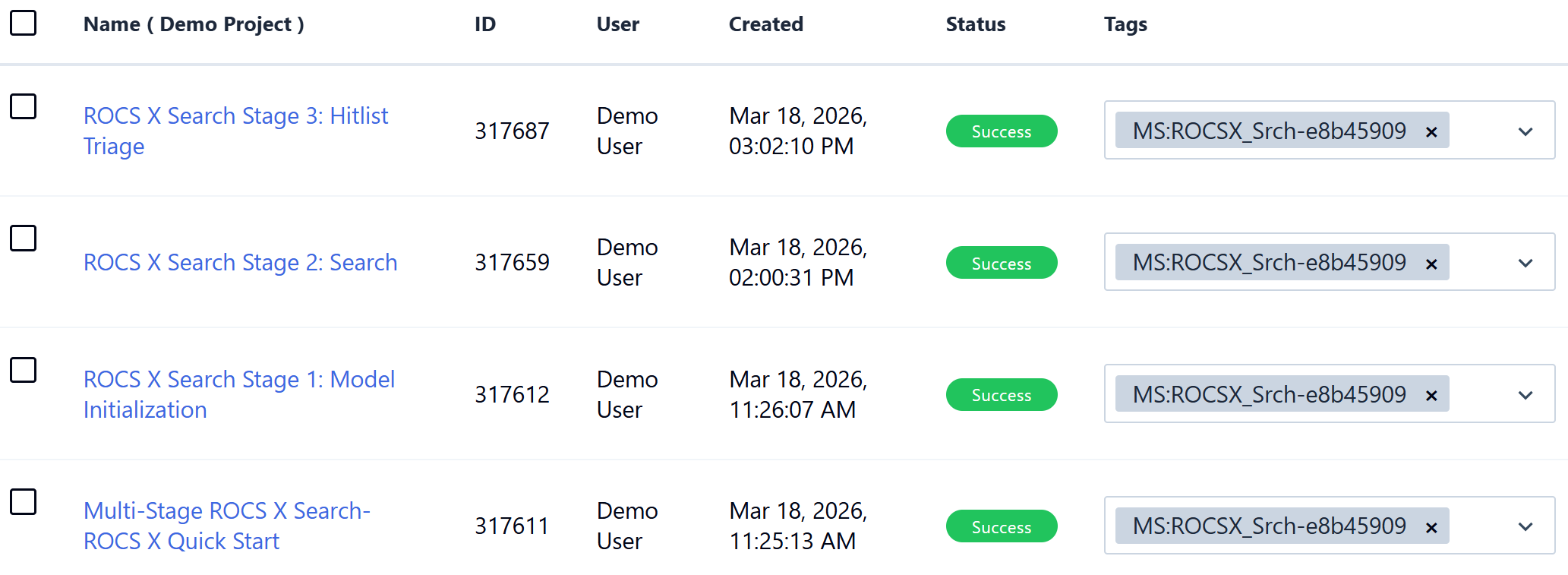
Figure 3. The completed Multi-Stage ROCS X Search run.
On the Jobs tab, click on the name of the head job (Multi-Stage ROCS X Search-ROCS X Quick Start in Figure 9). On the Details panel, open the Status Report to see information about the cost of each floe.
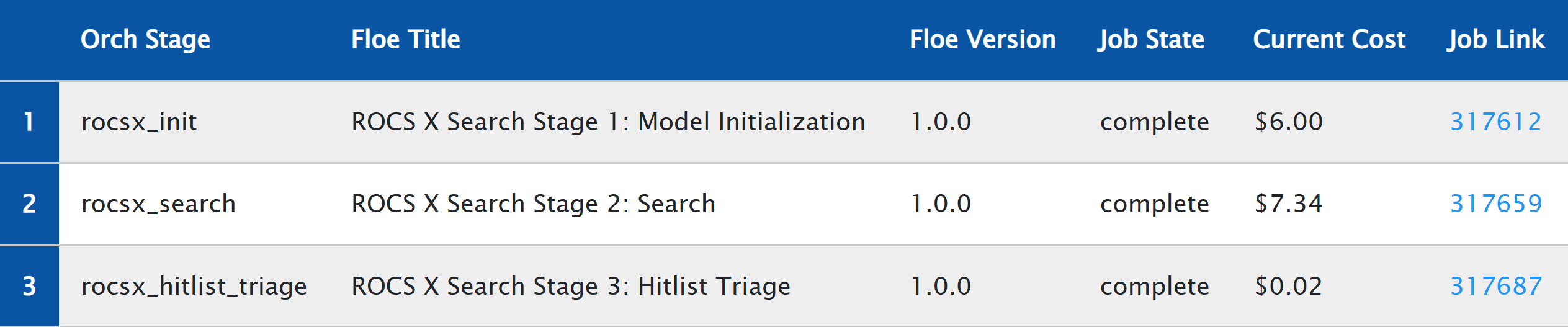
Figure 4. Example costs for running the Multi-Stage ROCS X Search Floe.
You can use the 3D & Analyze page to view the hit list results of the search as well as check overlays. Click the “View In Project Data” button next to Results to see outputs that were generated from the multistage run. The key outputs are listed in Table 1.
Name |
Type |
Description |
|---|---|---|
Product Sample Hit List |
Dataset |
The top-scoring products from the initial product sample
during model initialization.
|
ROCS X 3D Search Hit List |
Dataset |
The top-scoring products from the ROCS X 3D search. |
ROCS X 3D Search (All) |
Collection |
All products that were searched in the ROCS X 3D search. |
Hitlist_Duplicate_Info.txt |
Text File |
Information about duplicates, including how to make hit list
products from different combinations of synthons in the library.
|
ROCS X Clustered Hit List |
Dataset |
The full (~10K) ROCS X 3D Search Hit List after 2D similarity
clustering.
|
ROCS X Sampled Hit List |
Dataset |
A small sample of hits (~100) from the top-scoring clusters
in the ROCS X Clustered Hit List. Useful for quickly assessing
search and triage results.
|
Click the ‘+’ icon next to the clustered hit list dataset (e.g., ROCS X Clustered Hit List-ROCS X Quick Start) to activate the dataset (the ‘+’ icon will become a green check, and the hit list should appear in Active Datasets in the Active Data Bar).
Navigate to the 3D & Analyze page from the blue navigation bar and select the 3D Analyze layout. You may remove the plot from view by clicking the X of the plot panel. The 3D Viewer and the Spreadsheet will show the ranked hit list information. The search query should be at the top of the hit list. Click the gray circle in the 3D column of the Spreadsheet so the query will appear in the 3D Viewer (the circle will turn green). To pin the query model, also click the “pin” icon. After the query is pinned, scroll down the hit list and click on any record to view the 3D overlay of that hit with the query. See the 3D & Analyze Page documentation in the Orion User Guide for more detailed information.
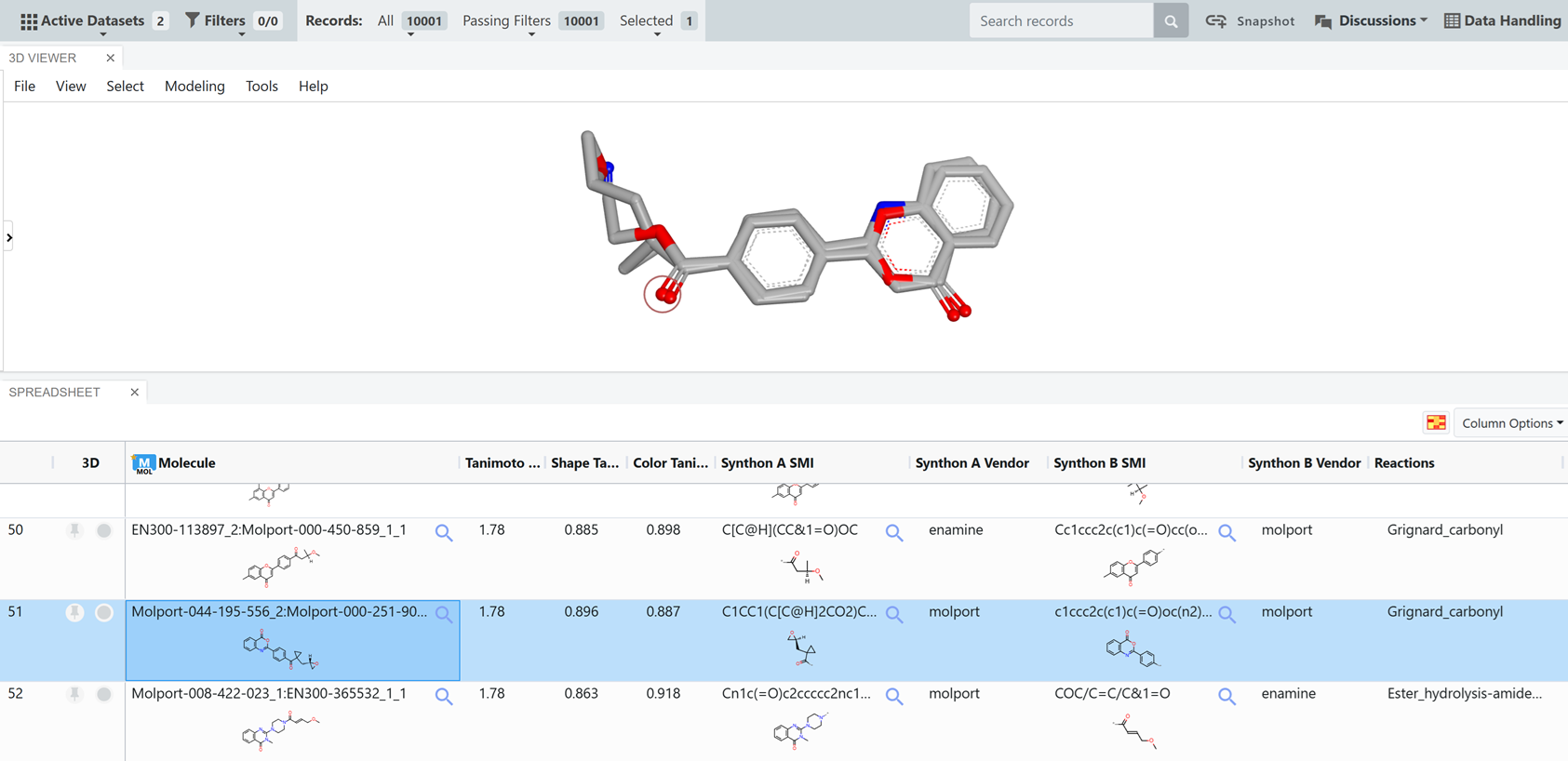
Figure 5. Example hit list results and 3D overlay for a ROCS X search.
You can also look up duplicate information for items in the hit list to see the different ways to make the product from synthons in the library. From the Data page, click the “Open in New Tab” icon next to Hitlist_Duplicate_Info.txt to load the text file in your browser. The easiest way to trace items from the hit list to the text file is to search by the hit’s rank. In Figure 6, duplicate information for the rank 51 hit is shown.
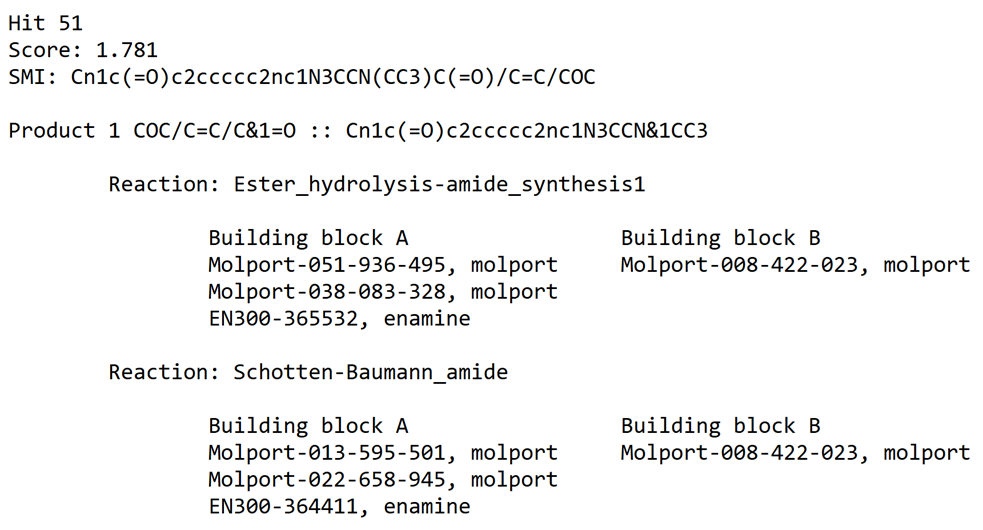
Figure 6. Hit list duplicate information.
You have completed the ROCS X tutorial. Now try preparing libraries from your own building blocks and searching your own queries.