Preliminary Setup Tutorial
This tutorial describes preliminary steps that are necessary to run all or most of the Large Scale Floes tutorials. After completing this tutorial, you will be ready to run every tutorial without further action, and input datasets will be available as needed for several floes. You will not need to repeat this tutorial.
Create a Tutorial Project and Working Directory
Note
Once you have created a tutorial project, you can reuse this one and skip this step.
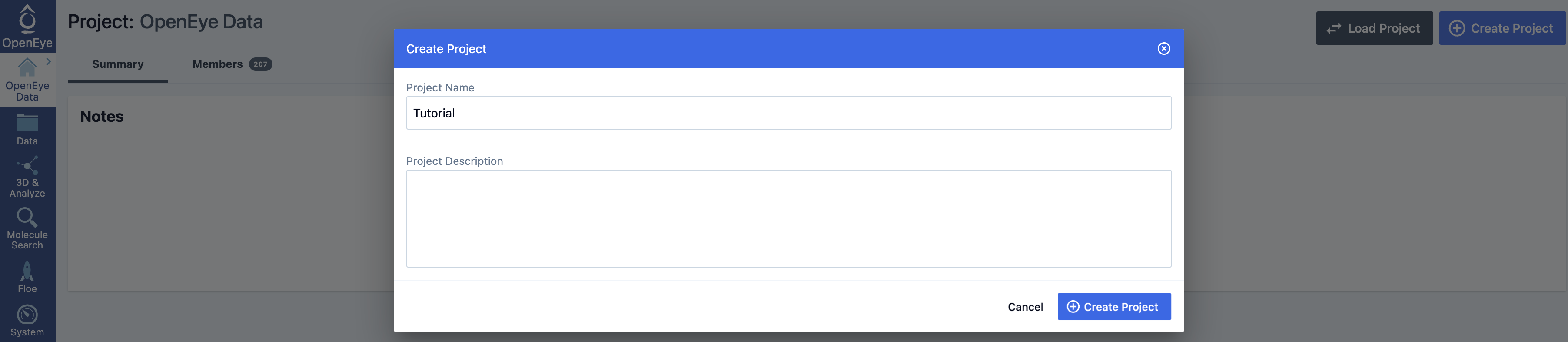
Figure 1. How to create a new project.
Log into Orion.
Navigate to the Project page on the blue navigation bar.
Click the “Create Project” button. In the dialog box, enter the project name (Tutorial for the tutorials) and click “Create Project” to save the project.
Navigate to the Data page to create a subfolder in your My Data folder of the Tutorial project. Click on the “Add Folder” button, enter Input Data for the folder name, and click “OK.”
Prepare Design Unit / Receptor
Many of the tutorials in the Large Scale Floes package require a prepared design unit and receptor as initial inputs.
This tutorial will use the HSP90 crystal structure 1uyg from the Protein Data Bank. You can import this structure into Orion and prepare it for docking in a few ways.
You can upload the PDB directly to Orion. On the Data page, click the “Add Data” button and select “Import Biomolecule.”
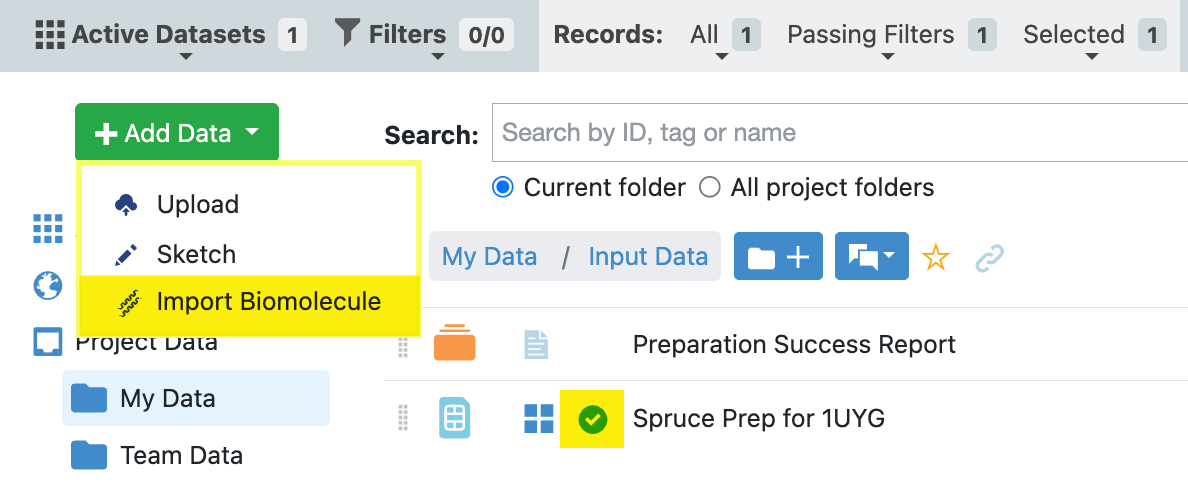
Figure 2. How to find the “Import Biomolecule” option for upload of a PDB structure. The circle with a green checkmark is also highlighted to show where to activate a dataset.
In the dialog box, type the PDB ID 1uyg into the “Search RCBB Codes” box. You can name the output dataset (hsp90_design_unit), specify the output path (Tutorial/My Data/Input Data), and make the biomolecule an active dataset when the preparation is complete. It is highly recommended to select the option to build missing loops for optimal preparation in downstream floes. Click the “Import & Prepare” button to automatically upload the structure and run the SPRUCE - Protein Preparation Floe in the background. Once the upload and preparation are complete, you can view the prepared design unit in the 3D & Analyze page.
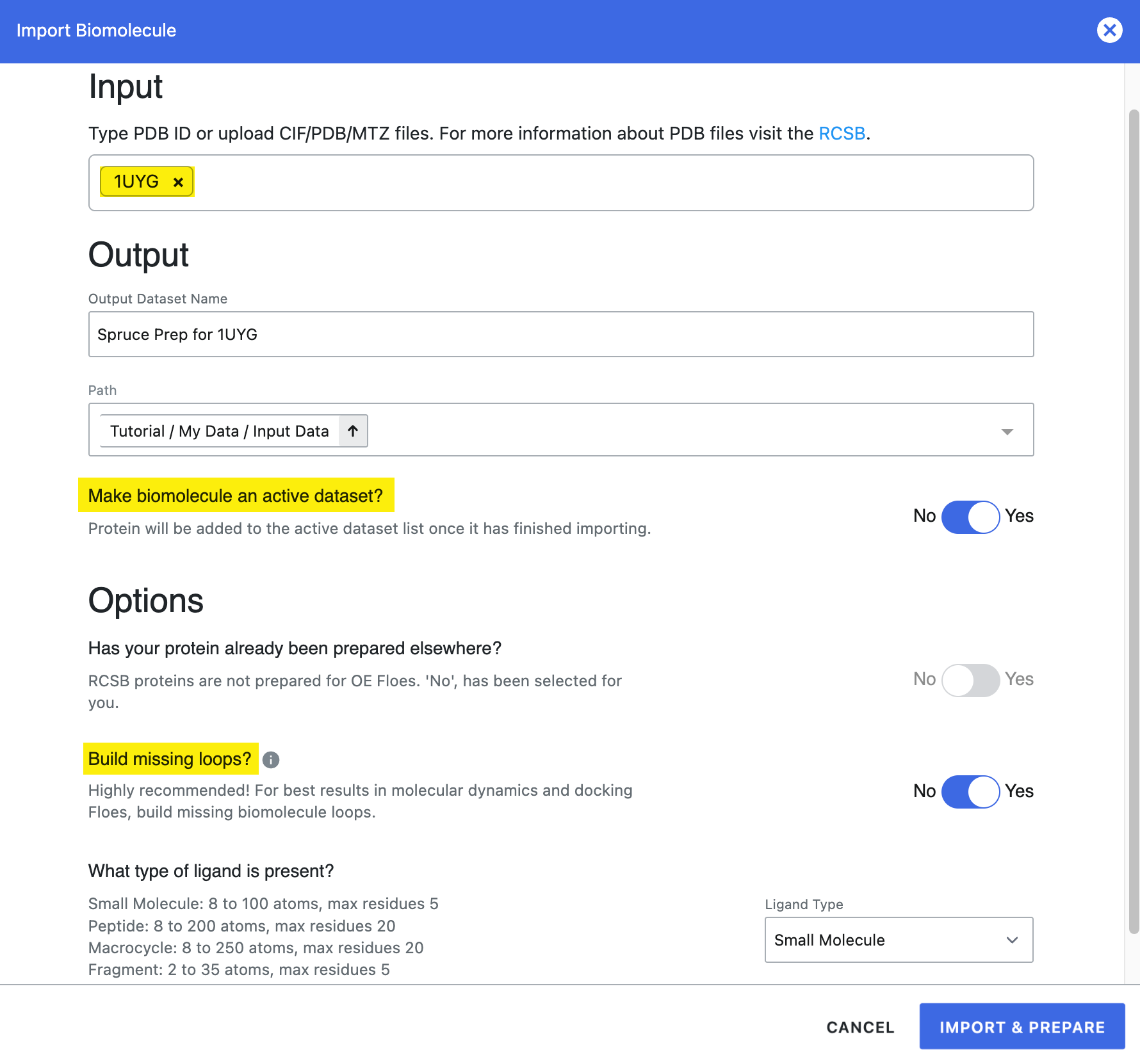
Figure 3. The “Import Molecule” dialog box with important features highlighted.
Alternatively, you can upload the PDB file without preparation and then run the preparation floe separately. Automatic upload is the fastest way to upload the structure. Simply drag a PDB file into the Data page, and it will upload immediately. Another option is to select the “Upload” option from the “Add Data” button. Here you can drag the file into the dialog box or browse your computer to find the file.
To prepare the protein, first locate the SPRUCE - Protein Preparation Floe on the Workflows tab of the Floe page.
Click “Launch Floe” to bring up the Job Form and set the following parameters.
Output Path: Use Tutorial/My Data/Input Data as the path.
Inputs
Input Structure (PDB/MMCIF) files: Enter 1uyg into the box.
Outputs
Output Dataset (Dataset Writer): Enter hsp90_design_unit into the box.
Click the “Start Job” button to launch the Floe.
The hsp90_design_unit dataset will serve as input for several floes in the following tutorials.
Regardless of the method used to upload and prepare the protein, you can see the details of the job in the Jobs tab of the Floe page. Simply click on the name of the job to view the detailed job information. You can learn more about detailed job information in the the Jobs tab documentation in the Orion User Guide.
View Prepared Design Unit / Receptor
To see the hsp90_design_unit dataset in the 3D Viewer on the 3D & Analyze page, the dataset must be made active. If you prepared the protein by direct upload and selected the option to make the biomolecule an active dataset, it will already be visible in the ‘Active Datasets’ drop-down list.
If you prepared the protein directly with the SPRUCE - Protein Preparation Floe or did not activate the dataset with the direct upload, navigate to the Data page from the blue navigation bar.
In the My Data folder, select the Input Data subfolder.
In the ‘Show’ drop-down menu, be sure that the Datasets option is selected.
Locate the hsp90_design_unit dataset. Make it active by clicking on the white circle with the plus symbol which will then become a green checkmark. (See Figure 2.)
This dataset should appear in the ‘Active Datasets’ drop-down. If other datasets are active, you can deselect them in the list or click the “Clear All” button.
For more detailed information on how to navigate the features in Orion, please see the User Guide, in particular the 3D & Analyze page and 3D Viewer documentation.
Next, switch to the 3D & Analyze page and select the 3D Modeling layout.
In the All Data tree, expand the hsp90_design_unit dataset and then expand the record under the design unit 1UGY(A) > PU(A-1224). Then click the dot next to it. The dot will turn green, and the DU will be visible in the 3D Viewer. You can visualize various parts of the DU by clicking the checkmark next to the component.
Expand the the Receptor part of the record. Click the checkmark next to the Receptor Outer Contour to make it visible.
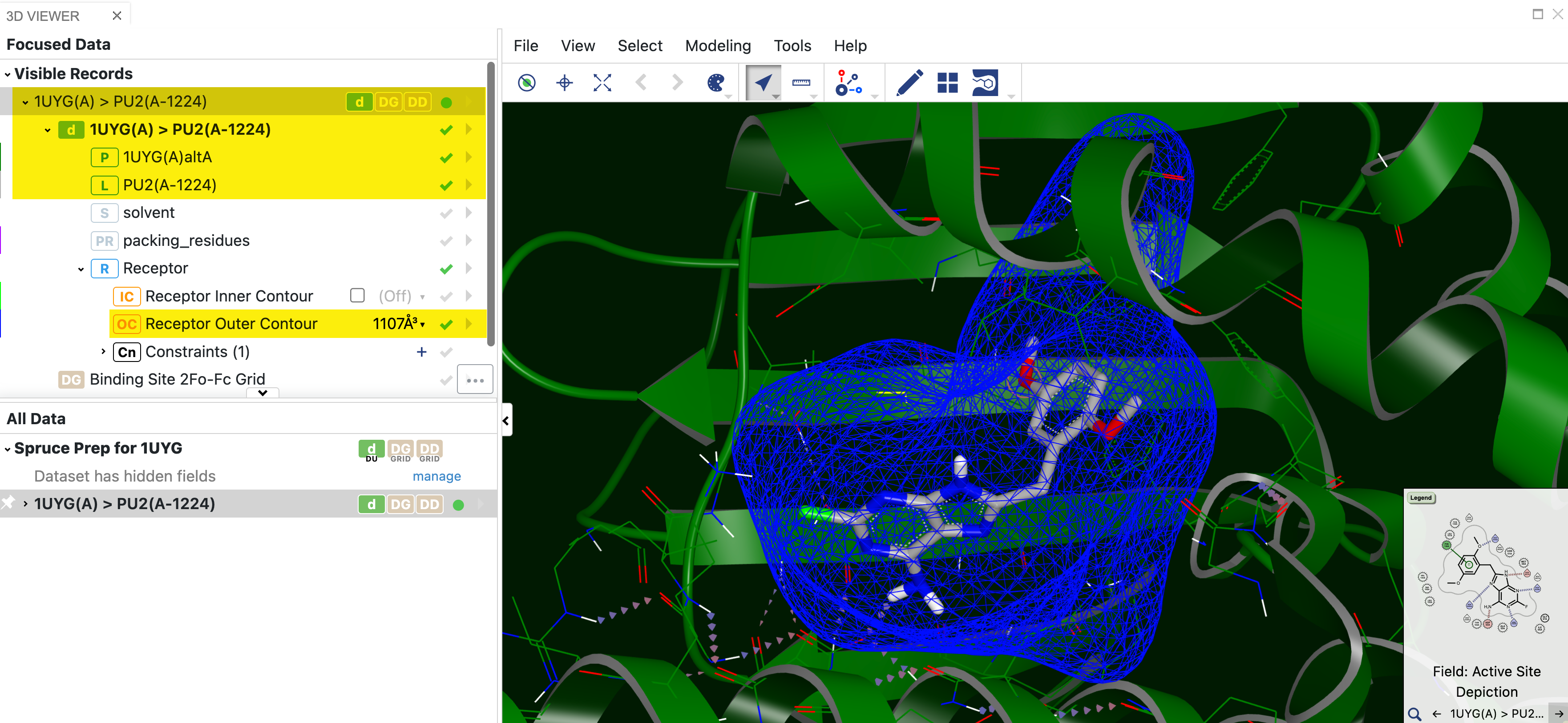
Figure 4. The active site of the prepared 1UYG binding site showing the protein structure, ligand, and blue outer contour. These components of the design unit are highlighted in the data tree on the left.
The protein structure, ligand, and a blue contour are now visible. The blue outer contour encloses the region of space that all docked molecule heavy atoms will fit within.