Tutorial - Building and Searching a ROCS X 3D Library With Multi-Stage Floes
This tutorial covers how to prepare and search a ROCS X library with the Multi-Stage ROCS X Preparation and Multi-Stage ROCS X Search Floes. These floes simplify complex, multi-step workflows on Orion® down to running one job to prepare the library and one job to search the library. The multi-stage floes work by launching one “head” job that orchestrates the running of successive “stage” floes. As each stage floe processes work and completes, it automatically passes its results to downstream stages for further processing. Results from the stage floes can be used like normal resources on Orion outside of the multi-stage floes context. Stage floes are typically run with with more default and fewer adjustable parameters. Although these defaults work well for most cases, users who require additional control can run the stage floes individually. More information on the individual floes can be found in the How-To Guides and in the floe documentation.
All inputs for the tutorials can be found in Organization Data / OpenEye Data / Tutorial Data / ROCS X Floes .
Prepare a ROCS X 3D Library
A ROCS X 3D Library can be prepared with the Multi-Stage ROCS X Preparation Floe, which runs the following floes in sequence:
Reaction & Reagent Database - Parallel Export Synthon Collection Floe
Reaction & Reagent Database - Synthon Collection Directory Listing Floe
Launch the Head Floe
Navigate to the Multi-Stage ROCS X Preparation Floe on the Floe page. Click on “Launch Floe” to bring up the Job Form.
Modify the Name and Output path to your liking. Note the Unique Orchestration Job Tag (MS:ROCSX_Prep by default) under Orchestration Settings. This tag is applied to this job and all launched jobs for easy identification. This tag will be truncated to 64 characters.
Under Stage 1: Building Block SMILES Ingestion, enter these values into these parameters:
Reaction Definition File: Click “Choose Input” to load the reaction definitions used for building the Reaction & Reagent Database. For the tutorial, use Tutorial-rxndefs.txt.
VendorA SMI File(s): Load a SMI file containing vendor building block information. For the tutorial, use Tutorial-Enamine-BBs.smi.gz.
Fill out the rest of the VendorA parameters. VendorA ID will be the key for the vendor, so keep this short and distinct. Example parameters for the Enamine building blocks are shown below:
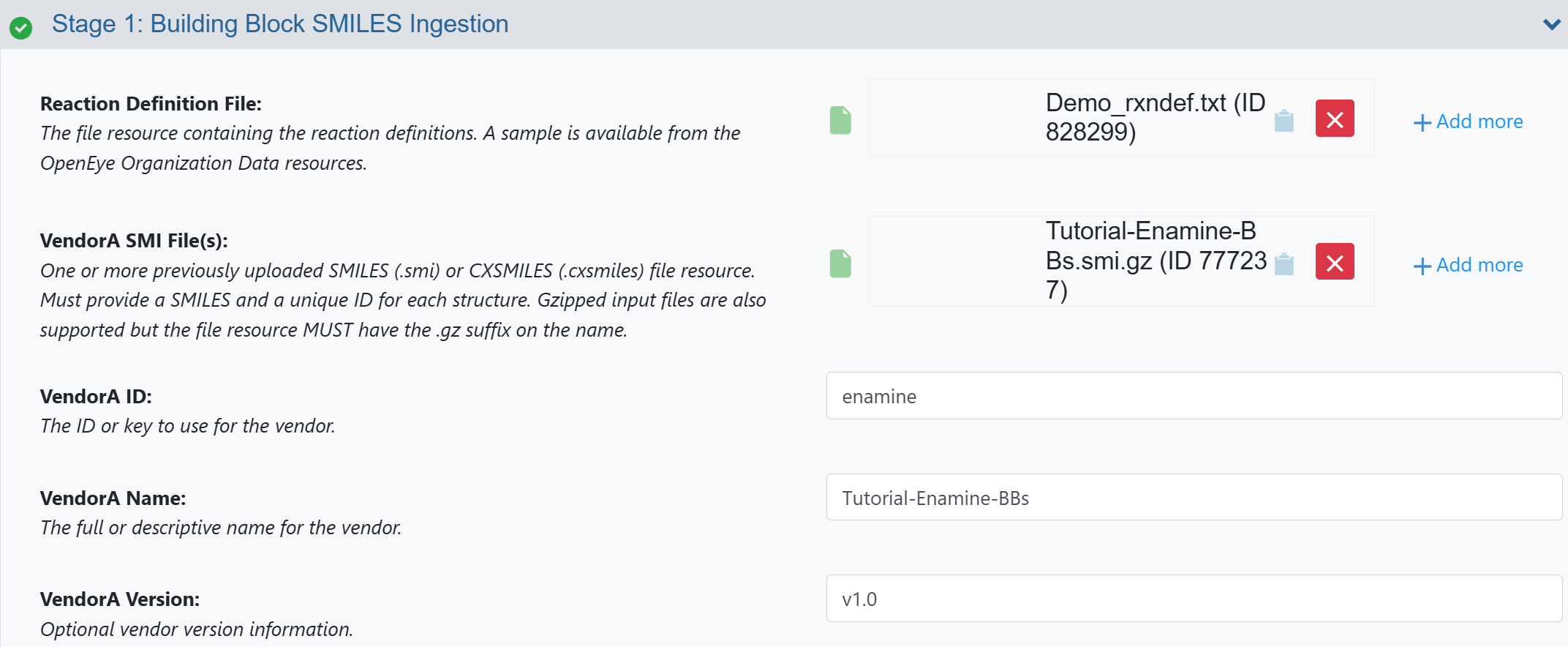
Figure 1. Stage 1: Building Block SMILES Ingestion parameters.
Optionally, you may add more building blocks under Stage 1: Additional Building Block Sources. For the tutorial, use Tutorial-Molport-BBs.smi.gz to add building blocks from Molport to the library.
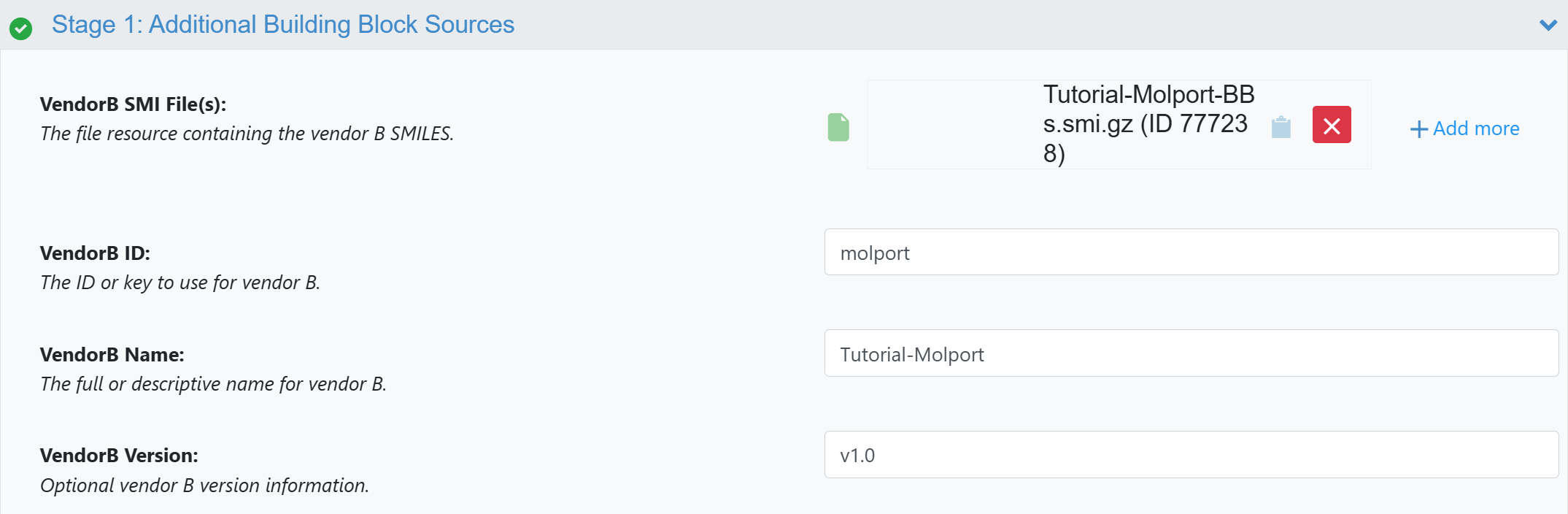
Figure 2. A second vendor was added in Stage 1: Additional Building Block Sources.
Optionally, you may include deprotection transforms to add transformed synthons to the library (the library will include both the transformed and untransformed forms). Under Stage 2: Export 2D Synthon Library:
Deprotection Transforms: Load deprotection definitions here. For the tutorial, use Tutorial-deprotections.txt.
Leave the rest of the inputs for Stage 2 and Stage 3 blank. The head Multi-Stage Floe will fill these in automatically as stages complete (Stage 2 inputs will be loaded with results from Stage 1 when it completes, and so on).
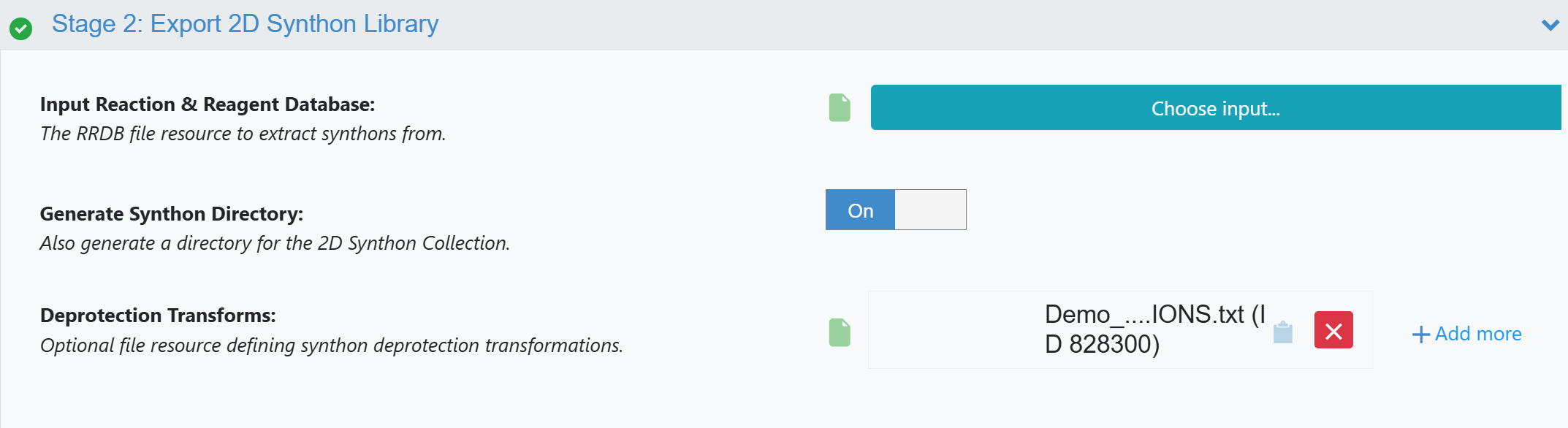
Figure 3. Stage 2: Export 2D Synthon Library parameters.
Note
In certain cases, you may want to skip the early stages of the multi-stage process and start from an intermediate stage. For example, you may want to rerun a ROCS X search in Stage 2 on the same model with different settings without initializing the model again in Stage 1. The Multi-Stage Floes start where they first receive input. To skip Stage 1, simply leave the input parameters for Stage 1 blank and provide input to Stage 2. The Multi-Stage Floe will skip Stage 1 (since it received no inputs for Stage 1) and start with the inputs provided in Stage 2.
Label the outputs to your liking and click the “Start Job” button.
Evaluate the Results
While your jobs are running, you should see the Multi-Stage ROCS X Preparation job you launched in the Jobs tab on the Floe page. This is the head job that will coordinate the launching of the stage jobs, all of which will be labeled with the same Unique Orchestration Job Tag.
Note
The tutorial jobs should take ~4 hours to complete and cost approximately $20.
When your jobs have finished, you should see “Success” for the head job and all five stage jobs.
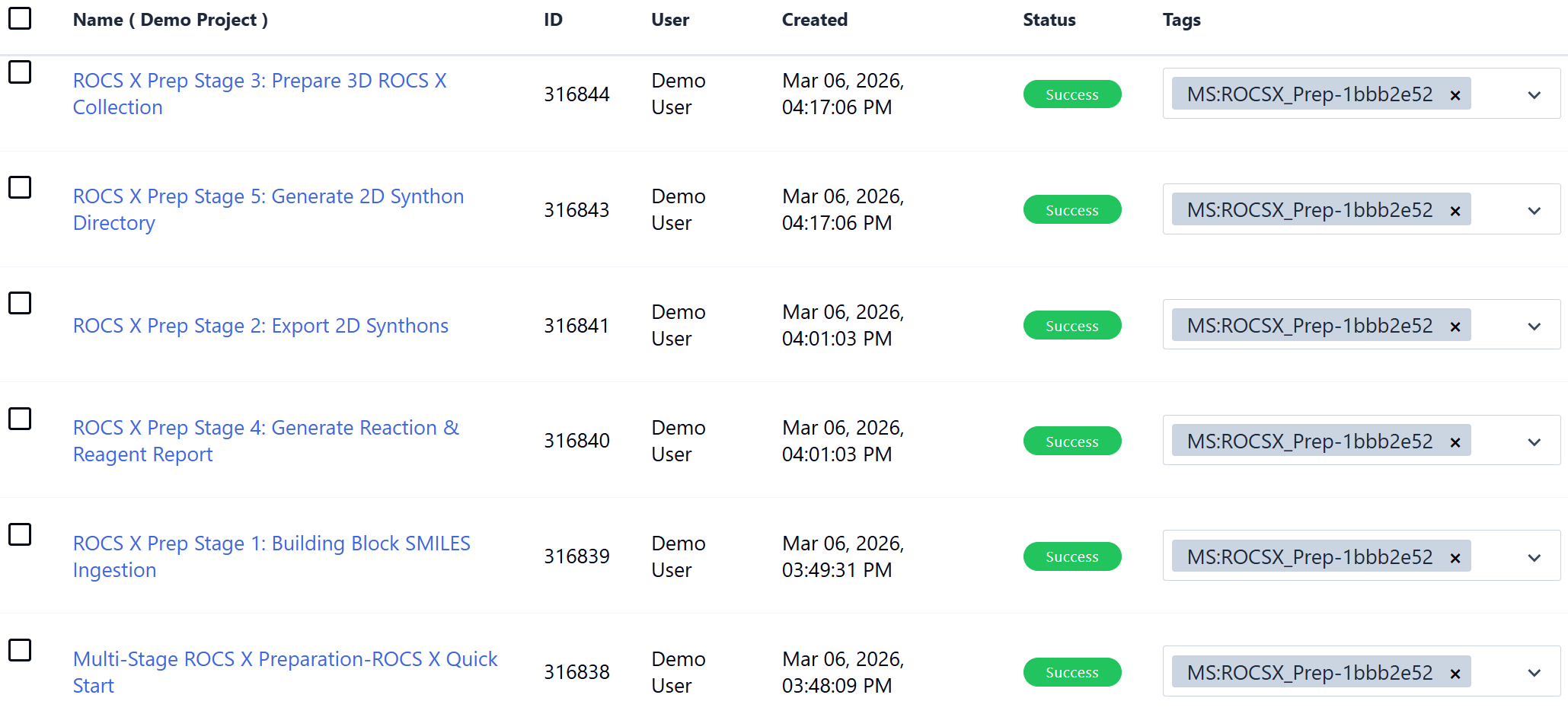
Figure 4. The completed Multi-Stage ROCS X Preparation jobs.
The head job collects the reports and results from the stage jobs. On the Jobs tab, click on the name of the head job (Multi-Stage ROCS X Preparation-ROCS X Quick Start in Figure 4). On the Details panel, there are expandable menus for Reports and Results. Click the “Open Report” icon for any report you want to examine, and it will open in a new tab.
The Status Report includes information about the cost of each floe.
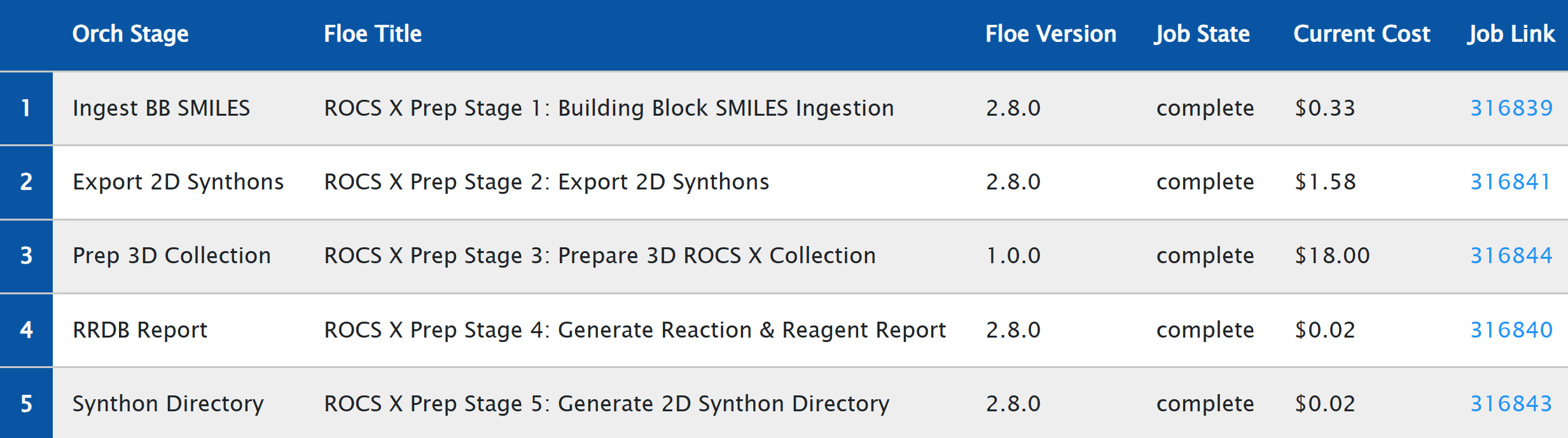
Figure 5. Example costs for running the Multi-Stage ROCS X Preparation Floe.
Click the “View In Project Data” button next to Results to see key outputs that were generated from the multi-stage preparation. Hover your mouse over the “i” information icon to display metadata about a collection. The Type Hints metadata shows information about the number of synthons and products in the library.
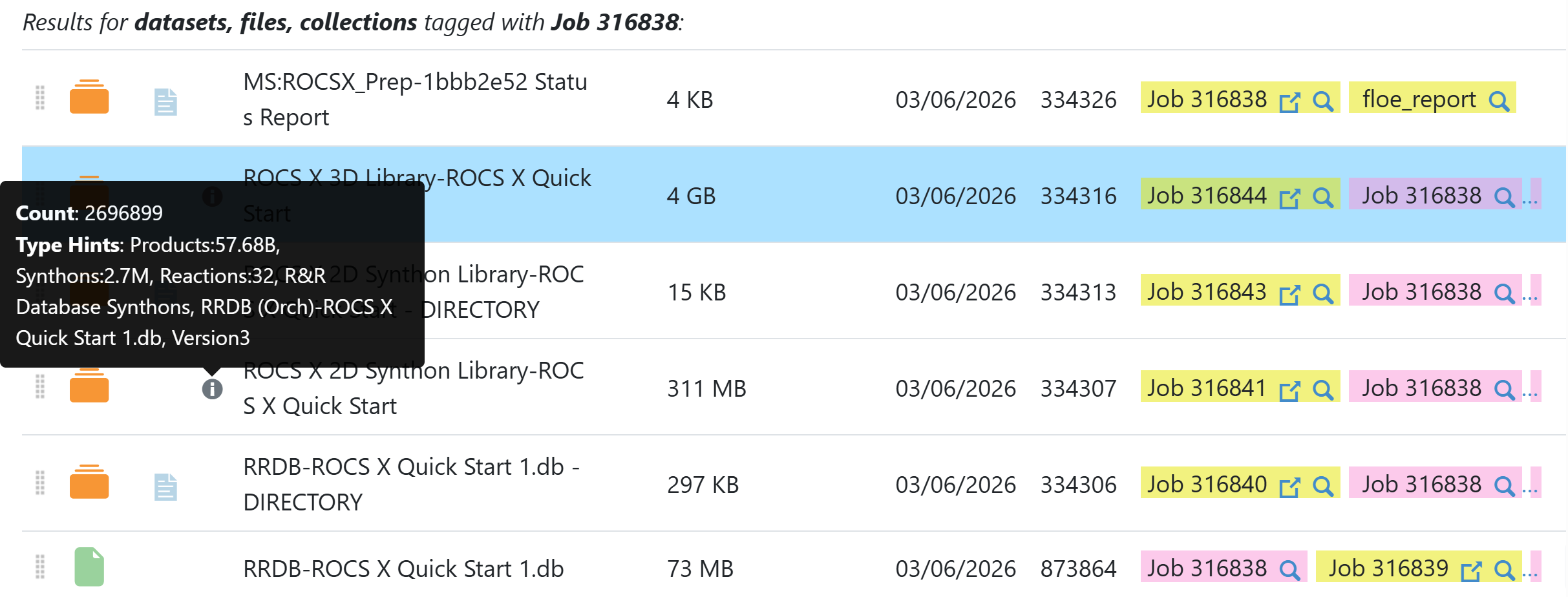
Figure 6. Output for the Multi-Stage ROCS X Preparation Floe.
Tip
The cost of the running the ROCS X - Prepare 3D Library Floe is approximately proportional to the number of synthons in the 2D Synthon Library (rather than the number of products). Viewing the Type Hints in the Orion UI can be a quick way to estimate the cost of preparing the 3D library.
The ROCS X 3D Search Library Collection is the final preparation output that will be used for search in the next section.
Search a ROCS X 3D Library
Now that you have prepared a 3D library, you can search the library with the Multi-Stage ROCS X Search Floe. This runs the following floes in sequence:
Launch the Head Floe
Navigate to the Multi-Stage ROCS X Search Floe on the Floe page. Click “Launch Floe” to bring up the Job Form.
Modify the Name and Output path to your liking. Note the Unique Orchestration Job Tag (MS:ROCSX_Srch by default) under Orchestration Settings. This tag is applied to this job and all launched jobs for easy identification. This tag will be truncated to 64 characters.
Under Stage 1: Model Init, enter these values into these parameters:
Query Molecule to Search: Use a valid search query (e.g., a single-conformer molecule) from a dataset. For the tutorial, use the sample query Tutorial Query Mol: TNKS2–4l33–pdb-ligand.
Input ROCS X 3D Library to Search: Use the library generated from the Prepare a ROCS X 3D Library section of the tutorial (e.g., ROCS X 3D Search Library Collection-ROCS X Quick Start).
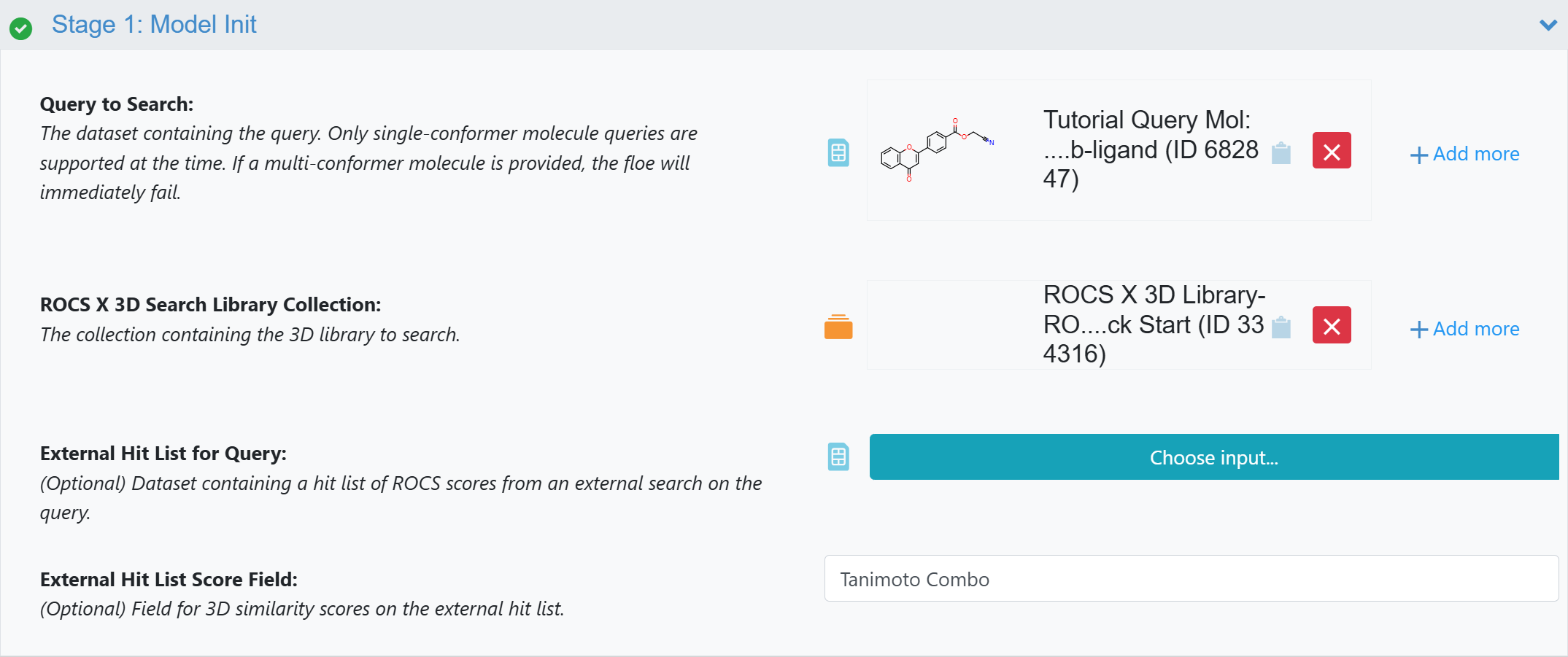
Figure 7. Stage 1: Model Init parameters.
Under Stage 2: ROCS X Search:
Number of Trials: For the purposes of the tutorial, adjust this down from the default 1,500,000 to 500,000 to run a short search.
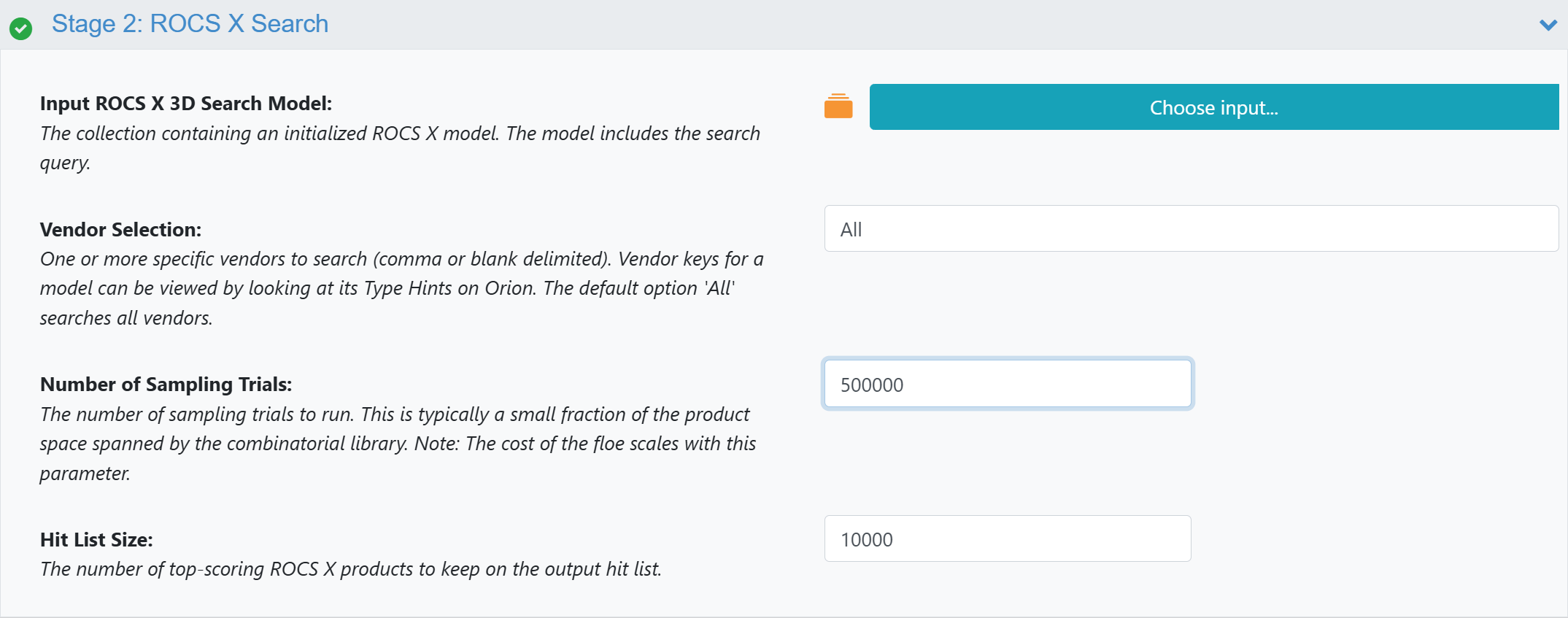
Figure 8. Stage 2 parameters.
Tip
The cost of running the ROCS X - Run 3D Search Floe is approximately proportional to the Number of Sampling Trials (i.e., running 3,000,000 trials costs roughly twice as much as running 1,500,000 trials) but you might find higher scoring hits from running more trials.
Leave the parameters for Stage 3: Hit List Triage as they are.
Label the outputs to your liking and click “Start Job” to begin the floe.
Evaluate the Results
Note
The tutorial jobs should take ~5 hours to complete and cost approximately $15.
You can monitor running jobs and access reports and results from the Jobs tab, just as in the Prepare a ROCS X 3D Library section of the tutorial. When your jobs have finished, you should see “Success” for the head job and the three stage jobs.
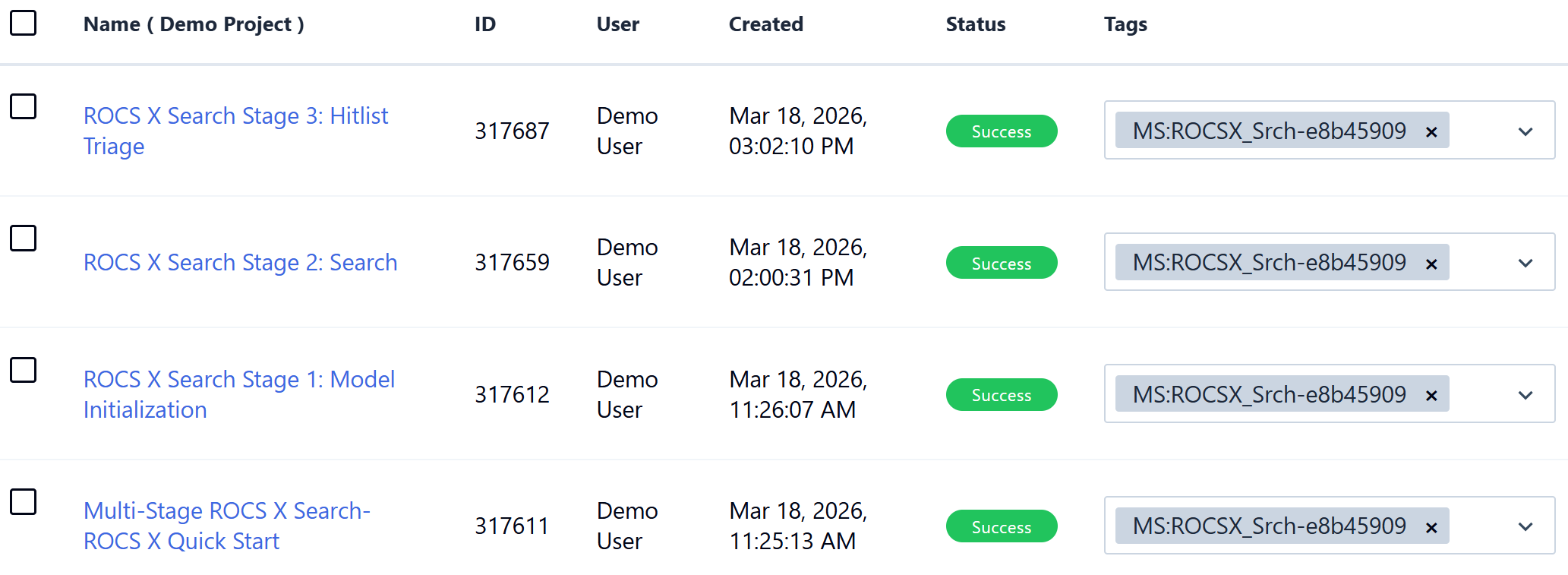
Figure 9. The completed Multi-Stage ROCS X Search run.
On the Jobs tab, click on the name of the head job (Multi-Stage ROCS X Search-ROCS X Quick Start in Figure 9). On the Details panel, open the Status Report to see information about the cost of each floe.
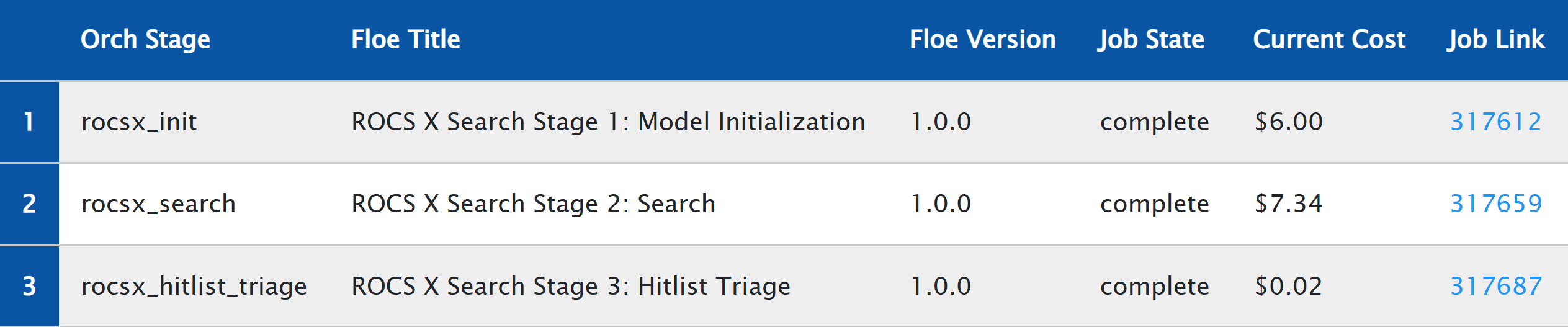
Figure 10. Example costs for running the Multi-Stage ROCS X Search Floe.
You can use the 3D & Analyze page to view the hit list results of the search as well as check overlays. Click the “View In Project Data” button next to Results to see key outputs that were generated from the multi-stage run. Click the ‘+’ icon next to the clustered hit list dataset (e.g., ROCS X Clustered Hit List-ROCS X Quick Start) to activate the dataset (the ‘+’ icon will become a green check, and the hit list should appear in Active Datasets in the Active Data Bar).
Navigate to the 3D & Analyze page from the blue navigation bar and select the 3D Analyze layout. You may remove the plot from view by clicking the X of the plot panel. The 3D Viewer and the Spreadsheet will show the ranked hit list information. The search query should be at the top of the hit list. Click the gray circle in the 3D column of the Spreadsheet so the query will appear in the 3D Viewer (the circle will turn green). To pin the query model, also click the “pin” icon. After the query is pinned, scroll down the hit list and click on any record to view the 3D overlay of that hit with the query. See the 3D & Analyze Page documentation in the Orion User Guide for more detailed information.
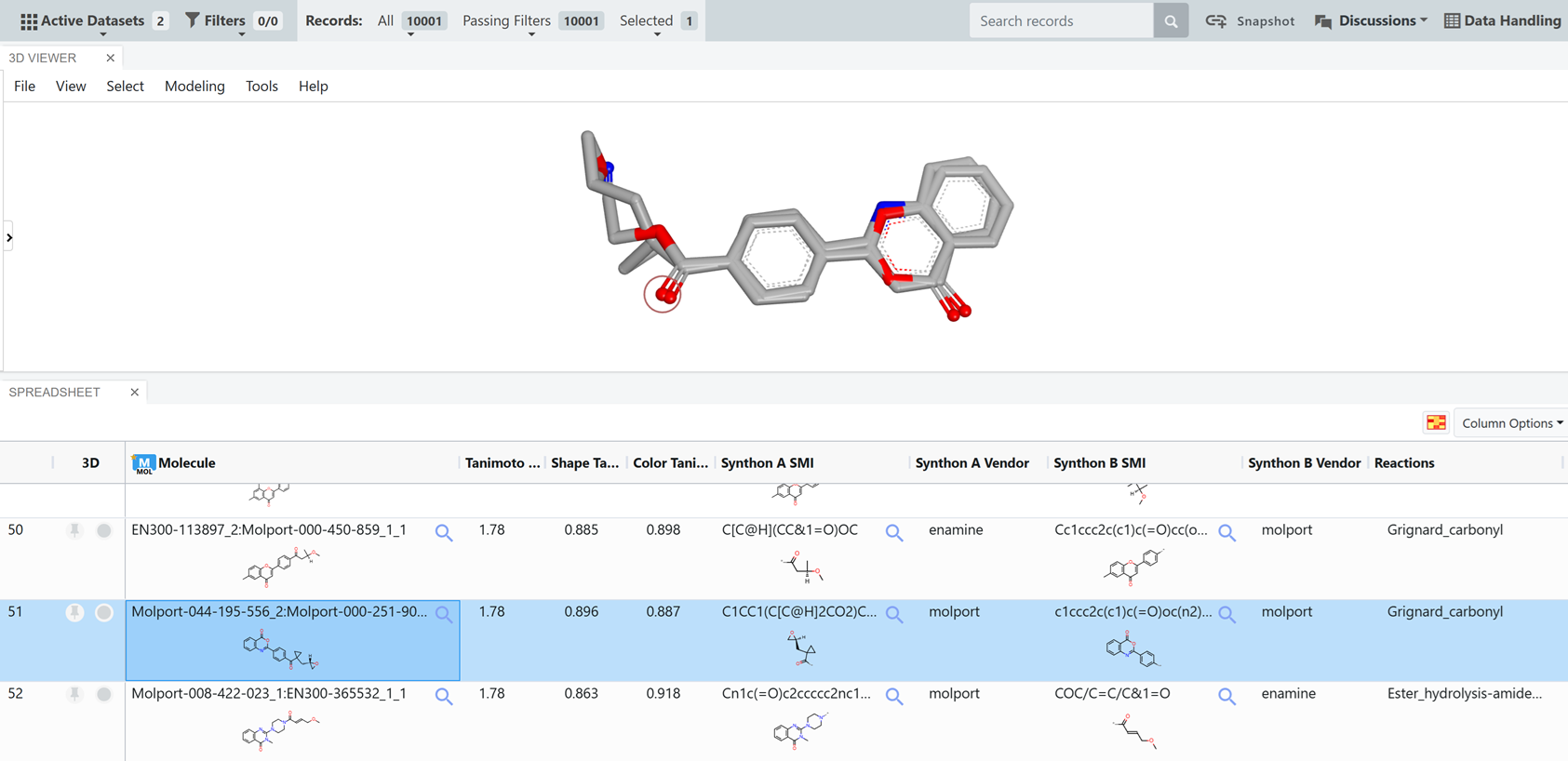
Figure 11. Example hit list results and 3D overlay for a ROCS X search.
You can also look up duplicate information for items in the hit list to see the different ways to make the product from synthons in the library. From the Data page, click the “Open in New Tab” icon next to Hitlist_Duplicate_Info.txt to load the text file in your browser. The easiest way to trace items from the hit list to the text file is to search by the hit’s rank. In Figure 12, duplicate information for the rank 51 hit is shown.
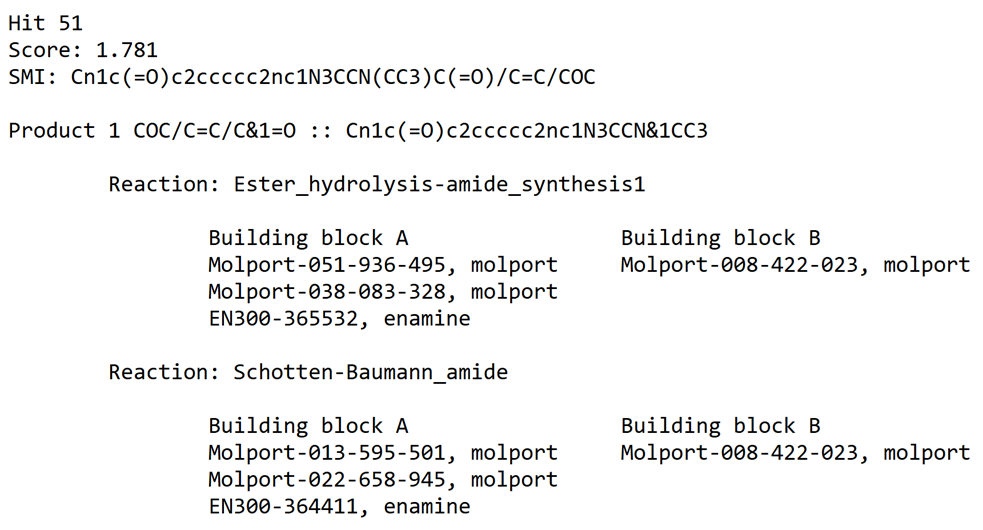
Figure 12. Hit list duplicate information.
You have completed the ROCS X tutorial. Now try preparing libraries from your own building blocks and searching your own queries.