Dock One Million Molecules with Gigadock Floe
In this tutorial one million molecules will be selected at random from the Enamine Diverse database and docked to the heat shock protein 90 (HSP90) target using the Gigadock floe. Running all the Floes in this tutorial will cost approximately $30 in Orion compute charges (the cost will vary somewhat depending on current AWS pricing).
This tutorial uses the following Floes:
SPRUCE - Protein Preparation from PDB Code from the OpenEye classic floes package.
Filter Collection from the OpenEye-large-scale-floes package.
Gigadock from the OpenEye-large-scale-floes package.
Cluster Poses from the OpenEye-large-scale-floes package.
Create a Tutorial Project and Working Directory
Note
If you have already created a Tutorial project while doing another tutorial you can re-use the existing one and skip this step.
Log into Orion
Click the Home button at the top of the left menubar.
Click on the ‘Create New Project’ button and in the pop up dialog enter Tutorial for the name of the project and click ‘Save’.
Prepare Design Unit / Receptor
Note
If you have prepared this design until for another tutorial you can skip this step and re-used the design unit from the first tutorial.
This tutorial will use the HSP90 crystal structure 1uyg from the Protein Data Bank. To import this structure into Orion and prepare it for docking locate the floe SPRUCE - Protein Preparation from PDB Code Floe in the ‘Floes’ page as follows
Click on the ‘Floes’ button in the left menu bar
Click on the ‘Floes’ tab
In the Floes filter click ‘All Floes’
In the search bar enter Spruce
A list of three spruce Floes will now be visible to the right. Click on the SPRUCE - Protein Preparation from PDB Code and a Job Form will pop up. Specify the following parameter settings in the Job Form.
Job Properties
Output Path : Tutorials/My Data/Input Data
You will need to create the Input Data subfolder unless you have already created it in another tutorial (this can be done within the selection menu).
Promoted Parameters
Outputs
Dataset : hsp90_design_unit
PDB Codes(s) to Download : 1uyg
Click the ‘Start Job’ button to launch the Floe. Wait for the Floe status to be complete before moving on to the next step in the tutorial (this may take ~10min). The cost will be less than $1.
View Prepared Design Unit / Receptor
Once the SPRUCE - Protein Preparation from PDB Code job finishes make the resulting dataset active as follows:
Go to the Project Data page by clicking on the blue ‘Data’ button on the left menubar.
Select ‘My Data’ under ‘Project Data’ from the list of options to the left of the page.
Select the folder ‘Input Data’ in the main view
In the ‘Show’ menu in the top center of the screen check ‘Datasets’ if it is not already checked.
Check to make sure you have no datasets set as active by clicking on ‘Active Datasets’ in the top right of the window. If you do click ‘Clear All’ to clear them.
Make the hsp90_design_unit active by clicking on the circle with the plus symbol in the Active column next to the hsp90_design_unit name.
Now switch to the 3D Viewer by clicking on the 3D button in the left menu bar. Only the crystallographic ligand from the pdb structure will initially be visible. Do the following to make the receptor information in the design unit visible in the 3D view.
In the ‘All Data’ window expand the tree under ‘1UGY(A) > PU(A-1224)’ by clicking on the chevron immediately to the right of the name.
Expand the tree under ‘1UGY(A) > PU(A-1224)’ by clicking on the chevron immediately to the right of the name. Note: the ‘1UGY(A) > PU(A-1224)’ name appears twice, once by default and once again after completing step 1.
Expanded tree under ‘Receptor’ by clicking on the chevron immediately to the right.
Click the check button to the left of “Receptor Outer Contour” to make the contour visible in the 3D window.
The protein structure, crystallographic ligand and a blue contour are now visible. The blue contour (generally referred to in OpenEye documentation as ‘The Outer Contour’) encloses the region of space that all docked molecule heavy atoms will fit within.
Prepare One Million Input Molecules
Molecules must be conformer expanded and placed in a collection (see Data Storage: Datasets, Files, and Collections) before they can be docked with the Gigadock Floe. OpenEye has pre-generated the Mcule Ultima Express collection for you. It contains 56 million molecules ready for docking. In this section a new collection containing a random subset of ~1 million molecules from the Mcule collection will be created.
Locate the Filter Collection Floe as follows
Click on the ‘Floes’ button in the left menu bar
Click on the ‘Floes’ tab
Click ‘All Floes’ in the left pane
In the search bar at the top of the right pane enter Filter Collection
The Filter Collection will be visible to the right. Click on the first entry of Filter Collection to bring up the Job Form and set the following parameters.
Jobs Properties*
Output Folder : Tutorial/My Data/HSP90 Dock
Promoted Parameters
Inputs
Input Collection : Organization Data/OpenEye Data/Gigadocking Collections/GigaDock Mcule Ultimate Express2 56M OEv1.0 - external.
To select this collection
Click the ‘Choose Input’ button for Input Collection to open the Select Dataset modal.
Click on ‘Organization Data’ workspace to the left of the modal.
Click the ‘OpenEye Data’ folder.
Click the ‘Gigadocking Collections’ folder.
Select the GigaDock Mcule Ultimate Express2 56M OEv1.0 - external collection.
Click ‘Use Collection as Input’
Outputs
Filtered Collection Name : Tutorial 1M GigaDock Collection
Options **
Keep This Fraction : 0.0188679
Note
We want to keep ~1M of the starting 56M, and 1/56 = 0.0188679
Scroll down to the bottom of the floe launch UI and click click ‘Start Job’. The job will take about 30min to run and incur an Orion compute charge of about $5. Once the floe has finished move on to the next step of the.
Dock Molecules to Site
Locate the Gigadock Warp floe as follows
Click on the ‘Floes’ button in the left menu bar
Click on the ‘Floes’ tab in the upper left of the main window.
Click ‘All Floes’ in the left pane
In the search bar at the top of the right pane enter Gigadock
The Gigadock floe will be visible to the right. Click on the first Gigadock floe to to bring up the Job Form and set the following parameters
Jobs Properties
Output Folder : Tutorial/My Data/HSP90 Dock
Promoted Parameters
Inputs
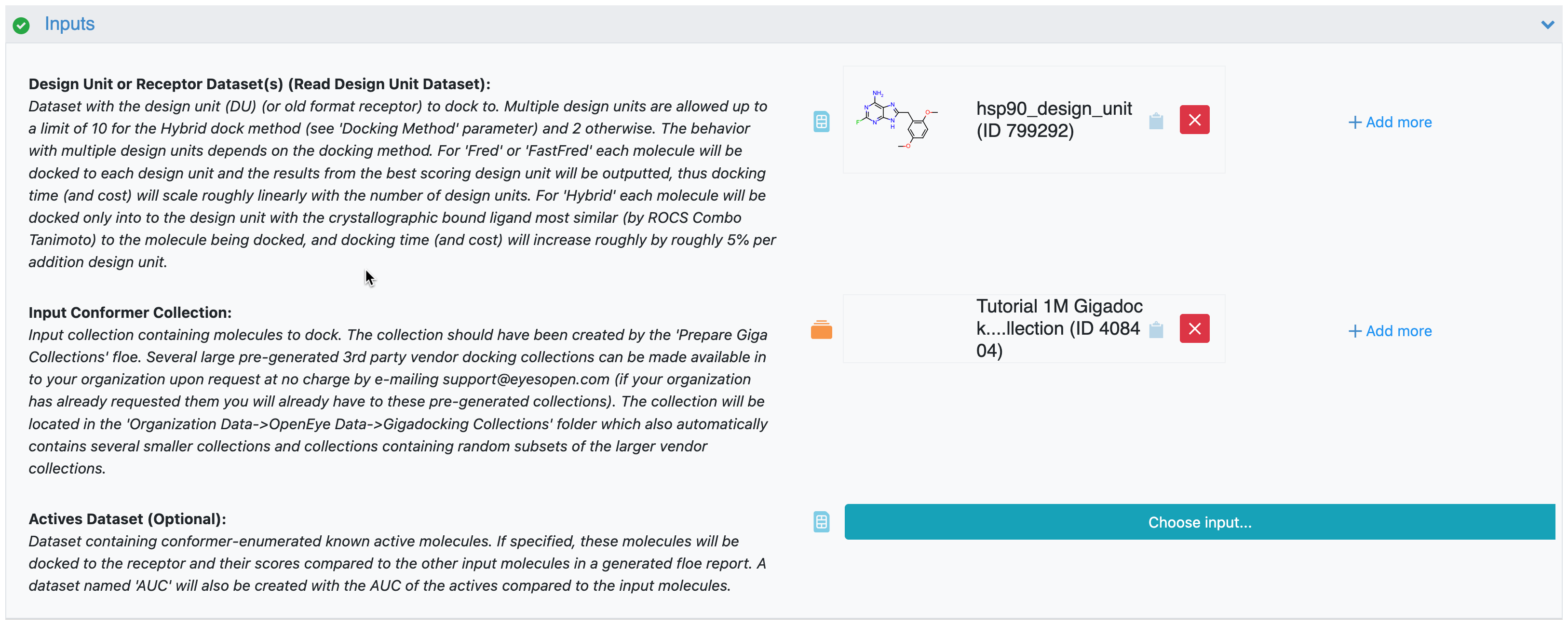
Design Unit Or Receptor Dataset(s) : Tutorial/My Data/Input Data/hsp90_design_unit
This is the dataset with the protein we prepared at the beginning of this tutorial. Select it as follows.
Click the ‘Choose Input’ button for Design Unit Or Receptor Dataset(s) to open the Select Dataset modal.
Click the ‘Input Data’ folder.
Select the hsp90_design_unit dataset
Click ‘Use dataset as Input’
Input Conformer Collection : Tutorial/My Data/Input Data/Tutorial 1M Gigadock Collection
Select the collection generated in the previous step of the tutorial as follows.
Click the ‘Choose Input’ button for Input Conformer Collection to open the Select Collection modal.
Click the ‘Input Data’ folder.
Select the Tutorial 1M Gigadock Collection collection.
Click ‘Use collection as Input’.
Once the parameters are set scroll to the bottom of the page and click ‘Start Job’. The job will take ~1.5h and include an Orion compute charge of ~$20. Wait for the floe to complete before continuing with the clustering hitlist tutorial.