Cluster Hit List Poses from Gigadock
This tutorial is a continuation of the Dock One Million Molecules with the Gigadock Floe tutorial.
Locate the Cluster Poses Floe in the Workflows tab of the Floe page. Click the “Launch Floe” button to bring up the Job Form and set the following parameters.
Output Folder: Use Tutorial/My Data/HSP90 Dock as the path.
Inputs
Input Dataset: Click the “Choose Input” button and use the Hit List dataset output from the Gigadock Floe.
Outputs
Output Dataset: Enter Pose Clustered Gigadock Hit List in the box.
Once the parameters are set, click “Start Job” to begin the floe. The job will take ~1.5 hours and cost approximately $5. Wait for the floe to complete before continuing with the tutorial.
View Results
View Datasets in the 3D Viewer
To see the docked molecules and the receptor in the 3D Viewer on the 3D & Analyze page, you first need to activate the datasets.
Navigate to the Data page from the blue navigation bar.
In the My Data folder, select the HSP90 Dock subfolder.
In the ‘Show’ drop-down menu, be sure that the Datasets option is selected.
Locate the Receptor dataset. Make it active by clicking on the white circle with the plus symbol which will then become a green checkmark.
Do the same thing with the Pose Clustered Gigadock Hit List dataset.
These datasets should appear in the ‘Active Datasets’ drop-down. If other datasets are active, you can deselect them in the list or click the “Clear All” button.
For detailed information on how to navigate the 3D & Analyze page, and in particular the 3D Viewer, please see the User Guide.
Next, switch to the 3D & Analyze page and select the 3D Modeling layout.
In the All Data tree, expand the Receptor dataset and then expand the record under the design unit 1UGY(A) > PU(A-1224). Then click the dot next to it. The dot will turn green, and the DU will be visible in the 3D Viewer. You can visualize various parts of the DU by clicking the checkmark next to the component.
Click the checkmark for the ligand PU2(A-1224). To the right of the green checkmark, click the small arrow to bring up the records menu and click the Style palette.
In the Styling menu, you can click a color under Coloring to change the color depicting the carbon atoms of the crystallographic ligand. In this example, choose green. Click outside of the Styling menu to close it.
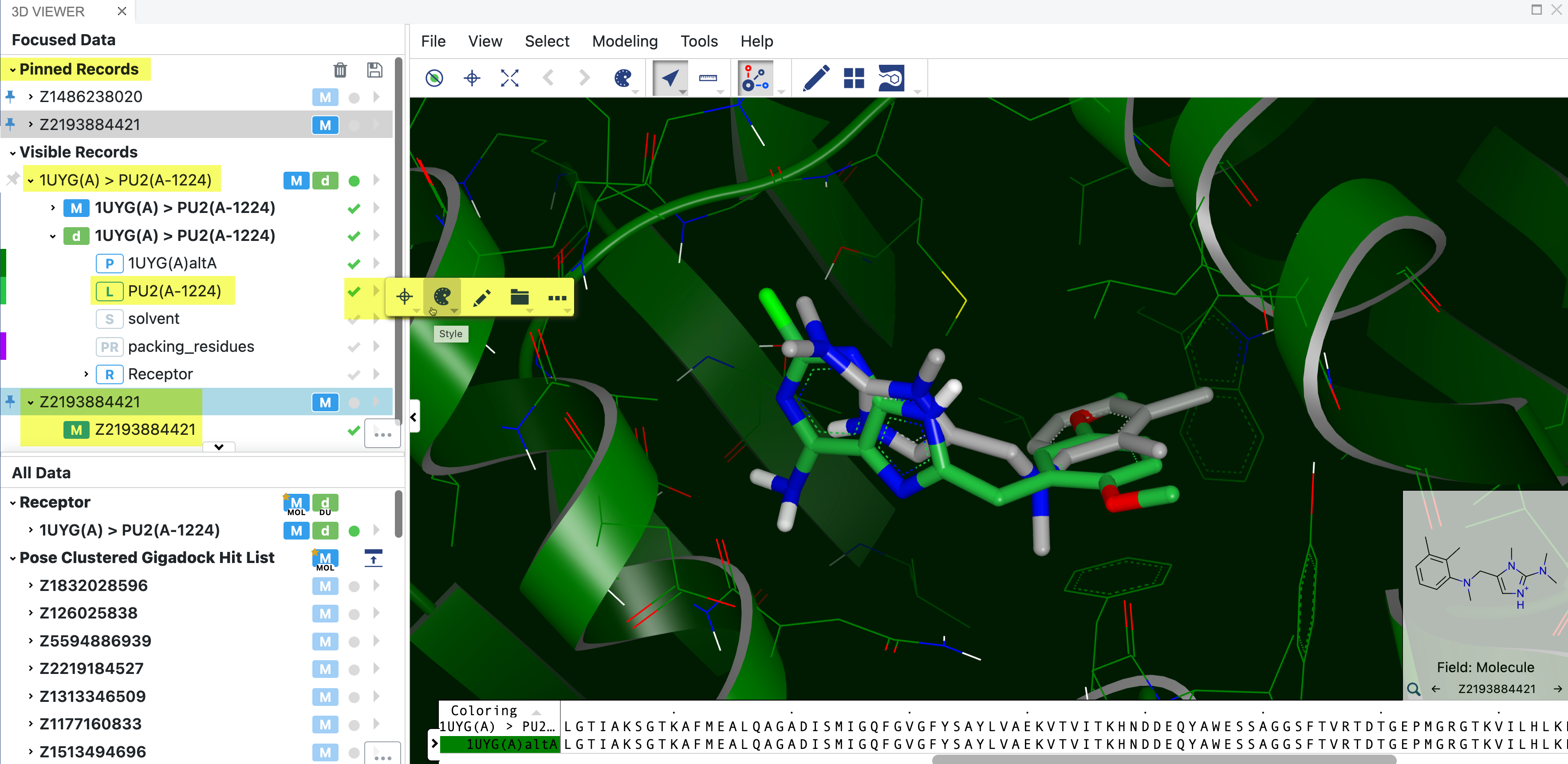
Figure 1. The 3D Viewer showing the HSP90 receptor and the crystallographic ligand PU2(A-1224) highlighted in the Visible Records data tree. The ligand is shown in green, and the side menu is also highlighted to show where to find the Style menu. A docked molecule is shown in grey with its name highlighted in both Visible Records and Pinned Records.
Now you can view the docked molecules that are in the Gigadock Pose Clustered Hit List dataset. Click on the first molecule of the hit list to see it in the context of the active site in the 3D Viewer. The next or previous molecule can be viewed using the up/down arrows. Any interesting molecules can be pinned using the space bar, and will appear in the top data tree under Pinned Records. Pinned records can be saved using the disk icon in the upper right of the data tree pane.
View Pose Cluster Heads Only
It is very straightforward to view only the cluster heads in a dataset. See the User Guide for more information about the filtering capability in the 3D & Analyze page.
Click the ‘Filters’ drop-down in the Active Data Bar to open the filter menu.
Clear any existing filters by clicking on the x to the right of the filter in the menu.
In the ‘Choose a Filter’ box, select Pose Cluster Tanimoto.
Enter 1.0 as the minimum value.
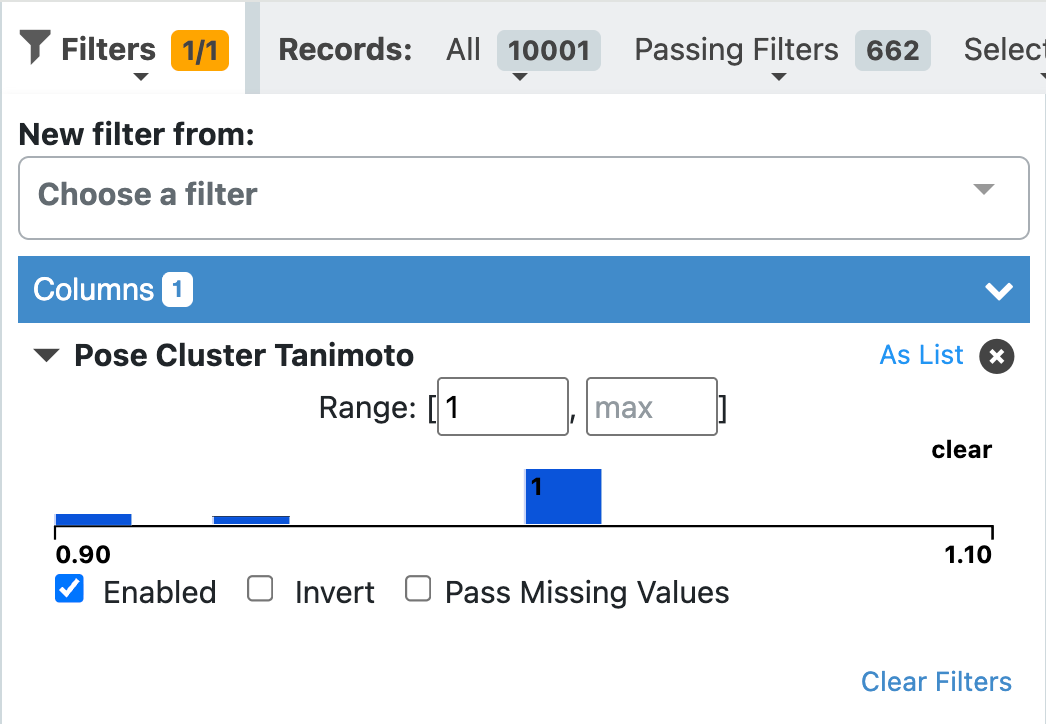
Figure 2. The Pose Cluster Tanimoto filter applied to the Hit List dataset. The filter is set to a minimum value of 1.0.
Only the cluster heads will now be visible in the 3D Viewer. The All Filters and Passing Filters headings show the total number of records and the number of filters that are currently passing, respectively. The list of molecules in the Hit List dataset will change to show only the cluster heads.
View Top Five Scoring of Each Cluster Only
To see only the top five scoring poses in each cluster, follow the same directions as above. In the ‘Choose a Filter’ box, select Pose Cluster Rank and enter 5 as the maximum value.
View One Pose Cluster Only
To see the poses from only one cluster, follow the directions above. In the ‘Choose a Filter’ box, select Pose Cluster ID. Set your desired cluster number as the maximum and minimum values. This example uses 10 as the cluster ID. Thus only poses from cluster 10 will be visible.