FastROCS Plus with FreeForm Analysis
In this tutorial, a collection provided by OpenEye will be searched for molecules that best match the 3D shape and chemistry of the drug Revlimid. The floes in tutorial will cost ~$45 in Orion compute charges.
This tutorial uses the following floes:
Note
If you have not created a tutorial project, see the directions in the Preliminary Setup Tutorial.
Create a Dataset with Revlimid
Navigate to the Data page on the blue navigation bar.
Click “Add Data” and select Sketch.
Paste the SMILES C1CC(=O)NC(=O)C1N2CC3=C(C2=O)C=CC=C3N into the Sketcher window.
Enter Revlimid as the molecule title and save it.
Click the “Done” button.
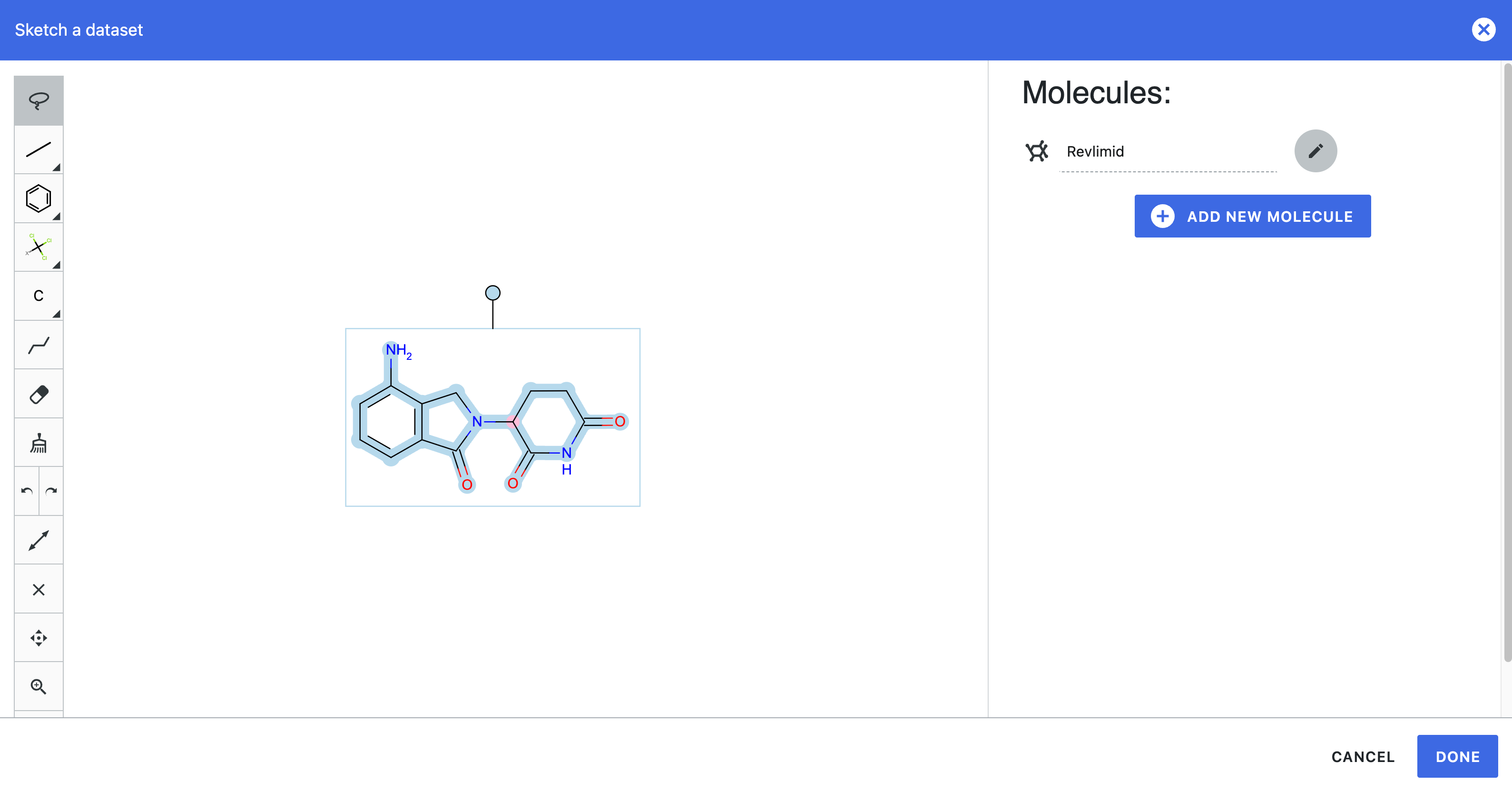
Figure 1. Modal to sketch a dataset.
A new modal will pop up asking for the name of the new dataset and where to place it.
Set the name of the dataset to Revlimid.
Set the path for the dataset to be saved in as Tutorial / My Data / Input Data.
Click the “Save” button.
Run the FastROCS Plus Floe
Locate the FastROCS Plus Floe on the Workflows tab in the Floe page.
Click “Launch Floe” to bring up the Job Form and set the following parameters.
Output Path: Use Tutorial/My Data/Revlimid FastROCS as the path.
Inputs
Input Query Dataset(s): Select the Revlimid dataset in the Tutorial/My Data/Input Data folder.
FastROCS Input Collection: Follow the path Organization Data/OpenEye Data/FastROCS Collections and select an appropriate collection for your needs. To run the most affordable example for this tutorial, select the smallest collection.
Options
Hit List Size: 1000
Click the “Start Job” button to start the FastROCS Plus job. The job will take approximately 30 minutes to run and cost about $40.
Compute FreeForm Delta G of the Hit List Molecules
Locate the FreeForm Pose Floe on the Workflows tab in the Floe page.
Click “Launch Floe” to bring up the Job Form and set the following parameters.
Output Path: Use Tutorial/My Data/Revlimid FastROCS as the path.
Inputs
Input Dataset: Select the ROCS Hit List dataset.
Outputs
Output Dataset: Enter ROCS Hit List with FreeForm in the box.
Click the “Start Job” button to start the FreeForm Pose job. It will take roughly 45 minutes to run and cost about $5.
View Hit List Results
Set Up Basic View
Activate the ROCS Hit List with FreeForm dataset to see the results in the 3D Viewer on the 3D & Analyze page. You can do this by clicking on the white circle with the plus symbol which will then become a green checkmark. This dataset should now appear in the ‘Active Datasets’ drop-down. If other datasets are active, you can deselect them in the list or click the “Clear All” button.
For more detailed information on how to navigate the 3D & Analyze page, and in particular the 3D Viewer, please see the User Guide.
Next, switch to the 3D & Analyze page and select the 3D Analyze layout.
In the All Data tree, expand the dataset. The OM (overlay molecule) badge for the top scoring molecule should already be highlighted and it will be in the 3D Viewer window. Click on the Q badge at the very top and the query will be visible with the overlay molecule. Use the up and down arrows to view other top-scoring molecules overlaid onto the query.
Note
Because the FastROCS Plus Floe was given a 2D query (i.e., a molecule graph without 3D coordinates), the floe automatically generated several 3D conformers of the query and used all of them in the search and for each database molecule retained the result with the best overlay. Thus as you cycle through the overlaid molecules, you will see that the conformation of the query molecule may change.
View Only Molecules with a FreeForm Delta G less than 3 kcal/mol
You can filter the results by FreeForm Delta G.
Click the ‘Filters’ drop-down in the Active Data Bar.
Clear any existing filters by clicking on the x next to the filter.
Click in the ‘Choose a Filter’ Box and select FreeForm Pose Delta G from the drop-down menu.
Set 3 as the maximum value for FreeForm Pose Delta G.
The 3D Viewer will now only show molecules that have a FreeForm Delta G of 3 or less.